Abaque

Your Google Sheets, now with accounting superpowers

FINANCIAL REPORTS MADE SIMPLE

Abaque™ is a Google Sheets™ add-on that turns your spreadsheet into a structured accounting system—something ordinary spreadsheet templates cannot enforce.

Abaque helps you

  • validate your Chart of Accounts
  • computes your account balances automatically
  • generate Balance Sheet, Income Statement, and Statements of Retained Earnings

Whether you're launching a new venture or streamlining existing financial records, Abaque gives you the tools to stay organized, compliant, and fully in control.

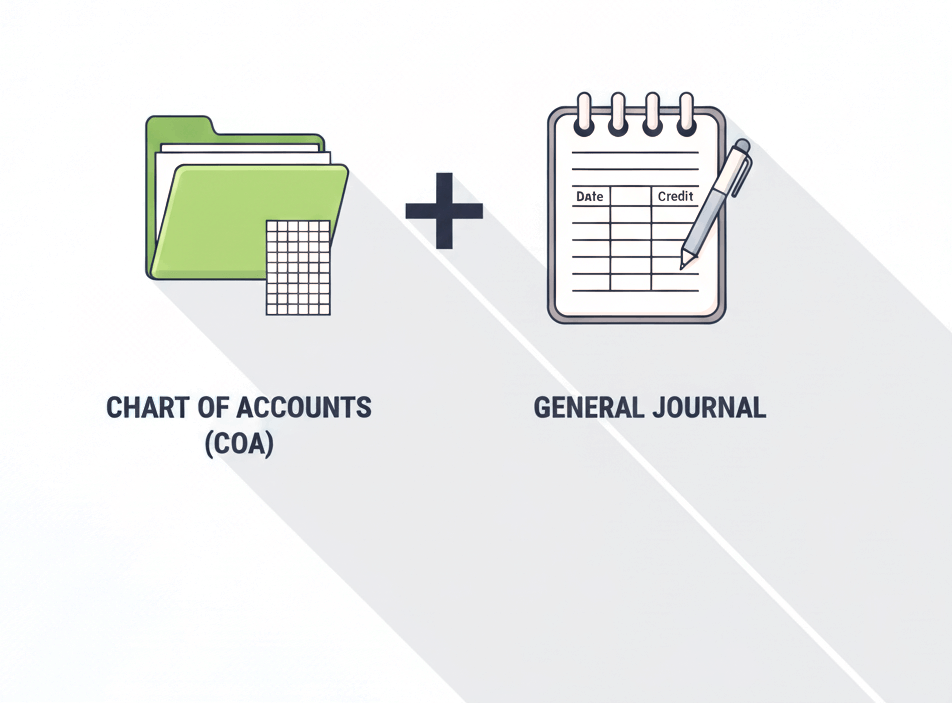
At the heart of every robust accounting system are two foundational components: the Chart of Accounts and the General Journal. Abaque provides three professionally designed template documents, each carefully structured to embody these two essential components as dedicated sheets. These templates are specifically tailored for Sole Proprietorships, Partnerships, and Corporations, accelerating your setup.

Chart of Accounts Sheet—Referred to as the CoA, this sheet is preloaded with essential default accounts and supported by a custom function that automatically calculates all account balances. The add‑on also provides a second custom function to carry forward balances from previous financial years.

General Journal Sheet—Referred to as the Journal, this sheet is comprehensively structured with all necessary columns for clear and accurate recording of every financial transaction, including sales taxes.

The Basics
Before you start

To get the most out of Abaque, you should be comfortable with Google Sheets, have a basic understanding of double-entry bookkeeping—the standard accounting method used by businesses of all sizes—and be meticulous when it comes to accuracy and detail. For example, it’s important to periodically reconcile the balances from your online bank and credit card accounts with the amounts shown in your financial records.

Unlike traditional bookkeeping software, Abaque keeps the structure of double-entry accounting intact while leveraging the flexibility of Google Sheets. No “Purchase”, “Sales”, “Clients” or “Vendors” windows to learn—Abaque uses a windowless approach, meaning all your accounting activity happens in clear, familiar spreadsheet layouts.

It’s simple enough for small business owners and powerful enough for professionals. Using Google Sheets’ built-in sharing and protection features, you can even practice collaborative accounting—where one person records transaction dates and descriptions, while another—such as the person responsible for the bookkeeping—completes the debit, credit, amount, and tax details.

Abaque helps you stay close to your data, understand how every number connects, and feel confident that your books are accurate, transparent, and fully under your control.

Why Abaque

See It in Action: How Entries Affect Your Balances

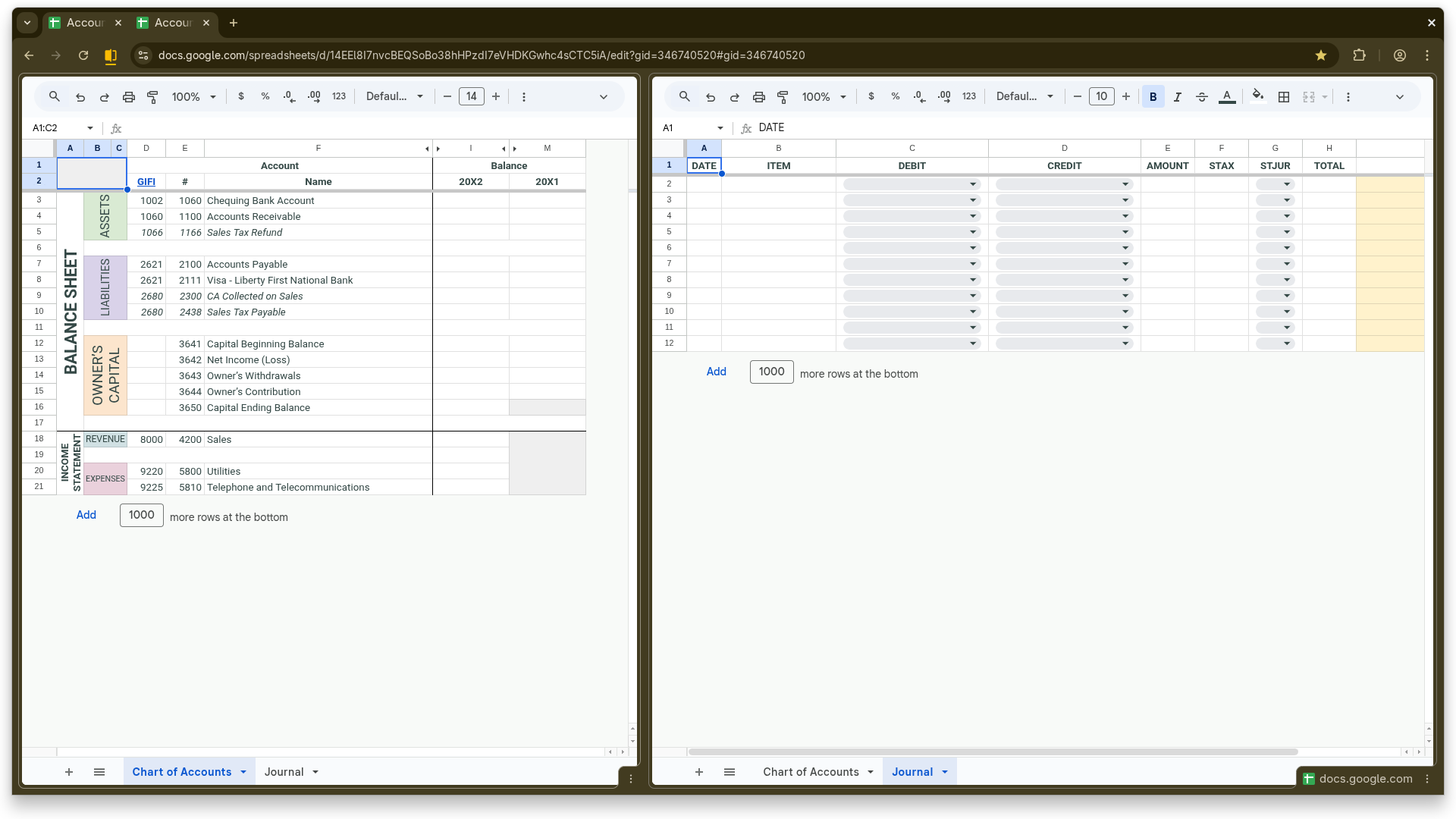
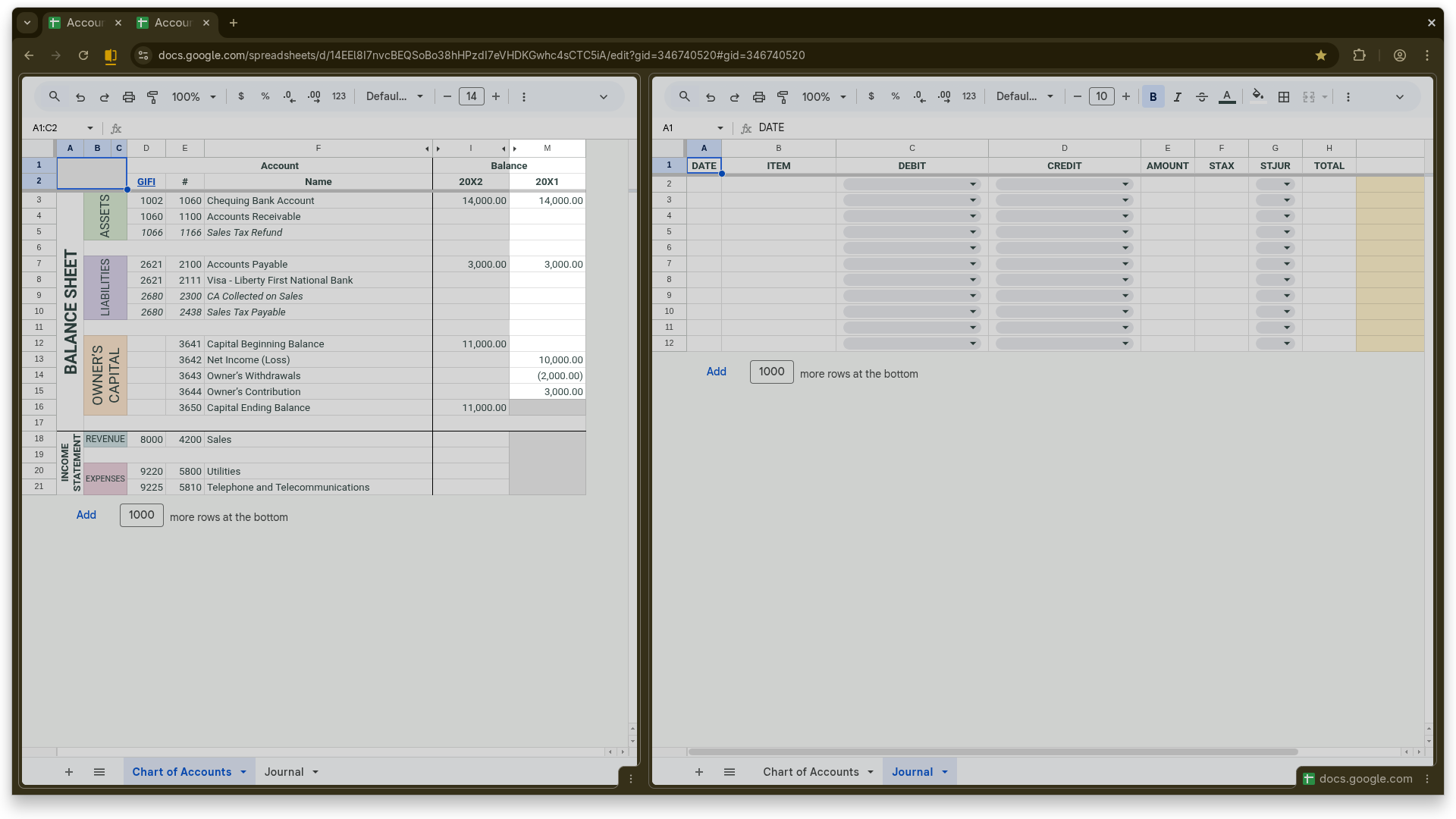
This demonstration features a split-view of a single Google Sheets file, displaying the CoA and the Journal sheets simultaneously to show their real-time interaction. The CoA displayed here is a simplified version of the one included in the template documents, featuring at least one representative account from each major category: assets, liabilities, owner’s capital, revenues, and expenses.

As new transactions are entered in the Journal, the corresponding balances in the CoA update instantly. Use the bullets below the image to navigate through the sequence. The description at the bottom of the slide explains the nature of each change and its impact on your account balances.
Slider Control with Radio Buttons
Select Region:
Select a region to see how Abaque adapts to local sales tax rules.
  • Initial state

    Initial state

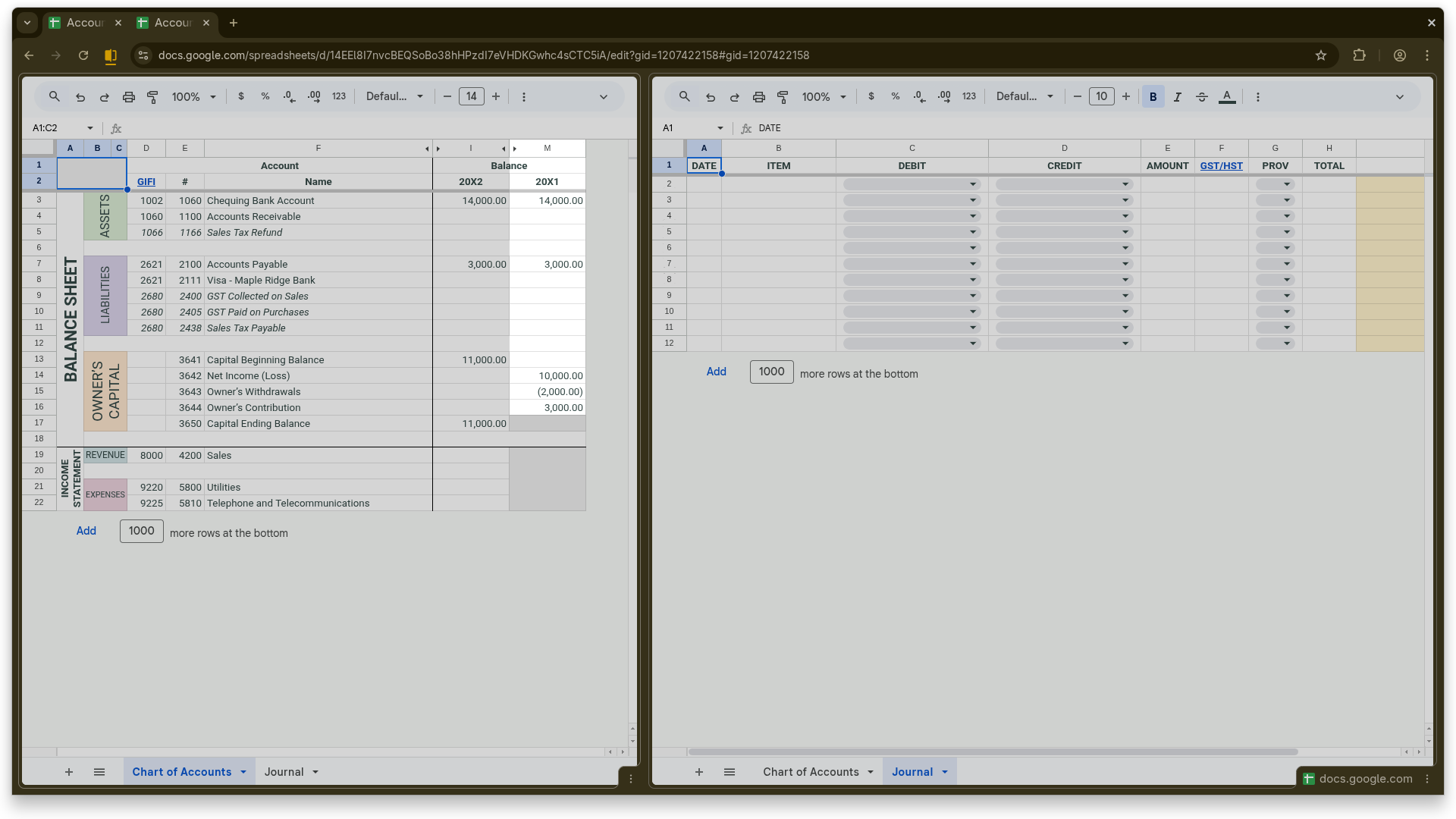
    Opening balances—all COA accounts start at zero.

  • Transferring Opening Balances

    Transferring Opening Balances

    If you are transitioning to Abaque from an existing bookkeeping system, transfer your closing balances to column “M” of the Balance Sheet section of the CoA, ensuring that the accounting equation (Assets = Liabilities + Equity) is respected. Income Statement balances cannot be imported. If the transition occurs during the financial year, income statement figures from both systems must be combined to determine the actual results for the period.

  • Configuring Sales Tax Using the Journal STJUR Column

    Configuring Sales Tax Using the Journal STJUR Column

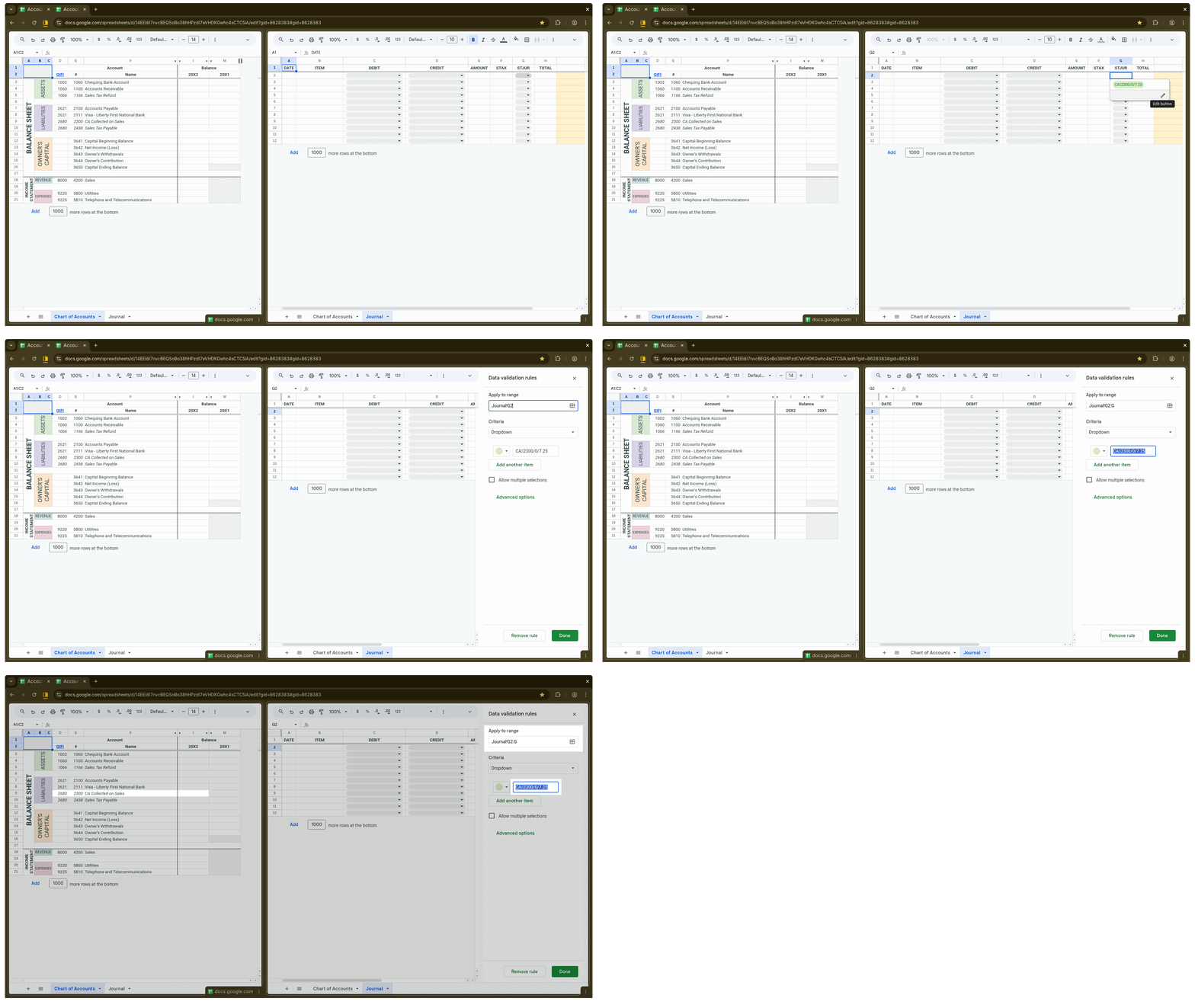
    In the International templates, sales tax is configured via a dropdown in the STJUR column. The sequence shows how to set the “Apply to range” field in the “Data validation rules” sidebar so that changes apply to the entire column (excluding the header), and how to add or edit sales tax items.

    Each item follows this format: “<STJUR label>This symbol (␋) represents a vertical tab used as a delimiter in Abaque.<collected sales account>/<IsVAT>/<TaxRateIn%>”.
    The example shows the California sales tax settings: CAThis symbol (␋) represents a vertical tab.2300/0/7.5

    (NB: In the Canadian templates, this step is unnecessary because Abaque natively supports GST, HST, and all provincial sales taxes.)

  • Owner’s Additional Contribution

    Owner’s Additional Contribution

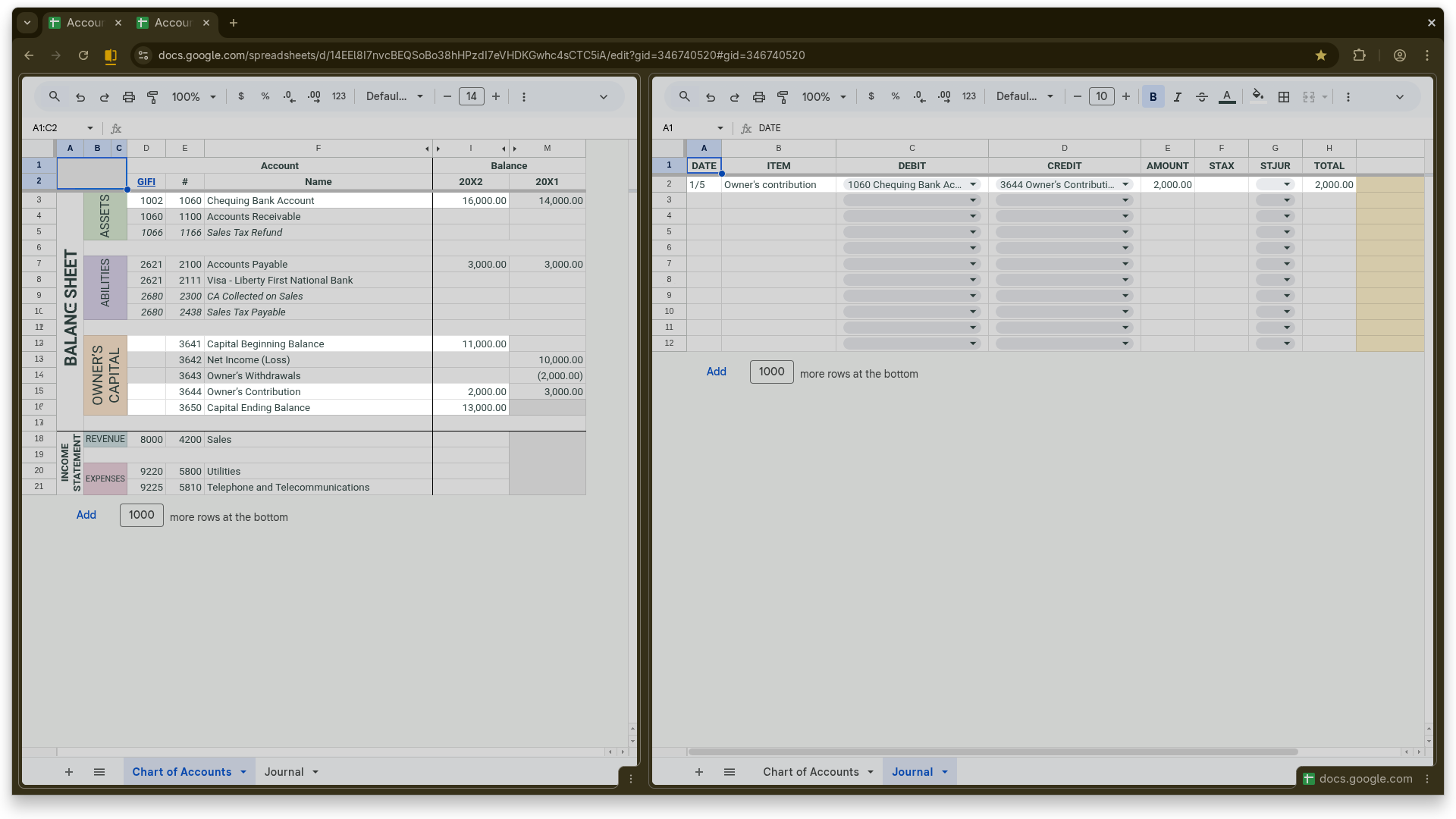
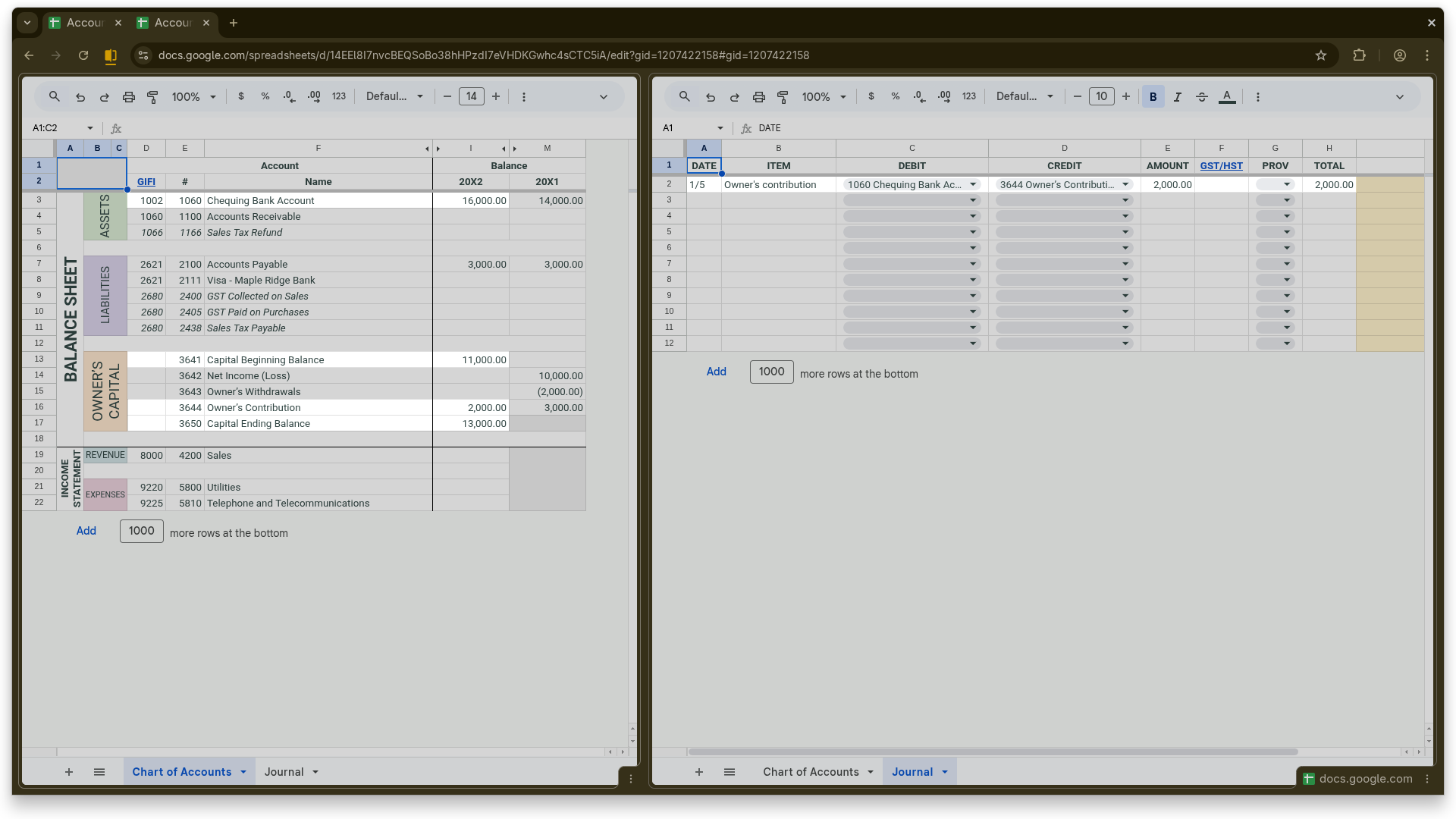
    The first journal transaction is an additional owner contribution of 2,000—the debit is posted to account 1060 (Checking Bank Account) and the credit to account 3644 (Owner’s Contribution). This amount is automatically added to the beginning-of-year capital balance in account 3641 (Capital Beginning Balance), bringing the ending balance in account 3650 (Capital Ending Balance) to 13,000.

  • Sales on Account (Accrual Basis)

    Sales on Account (Accrual Basis)

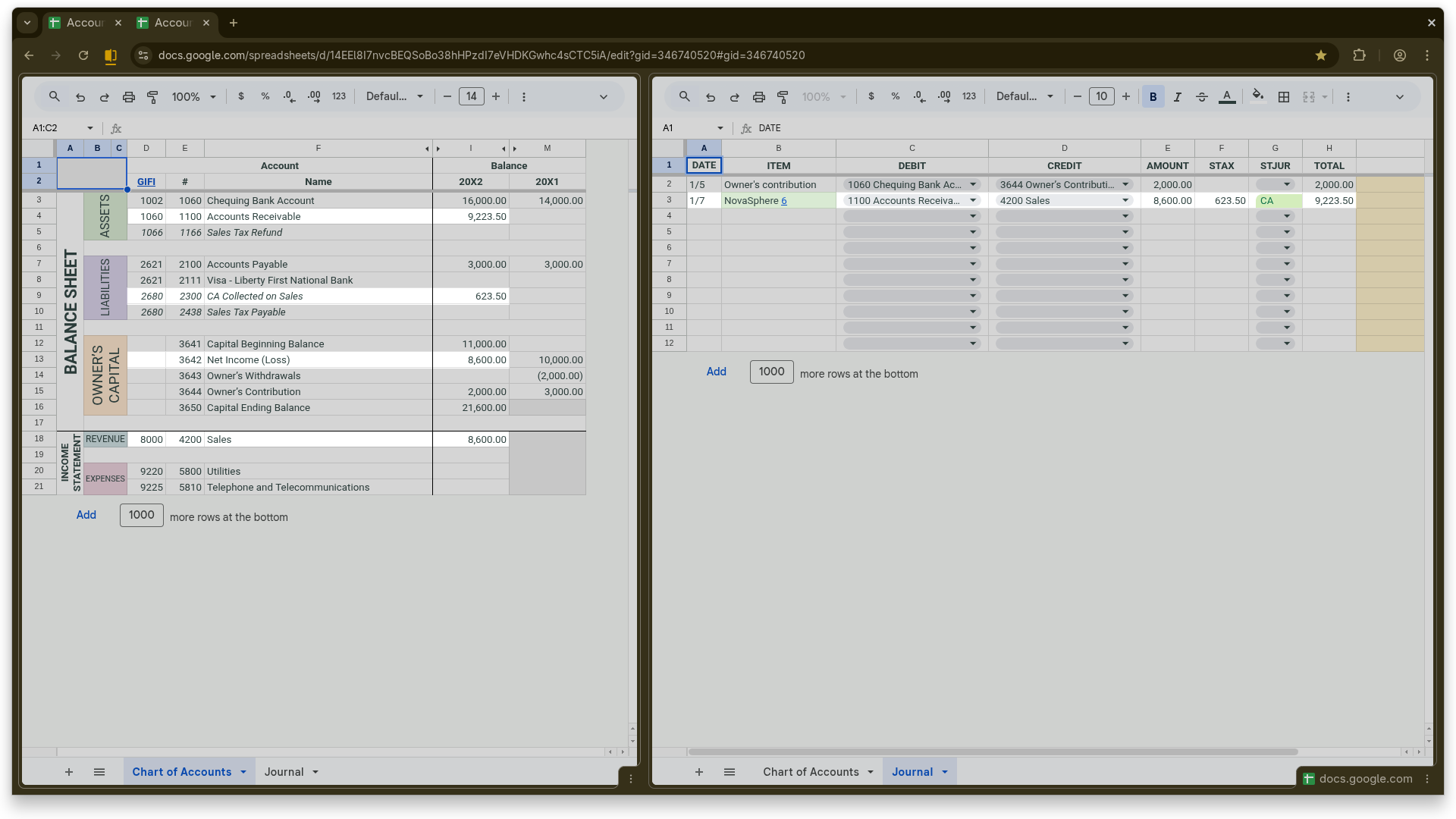
    Invoice #6 sent to NovaSphere—revenue is recorded in account 4200 (Sales), California sales tax is credited to account 2300 (CA Collected on Sales), and the balance remains outstanding in account 1100 (Accounts Receivable). The ITEM column with the customer name and invoice number is automatically highlighted in green to indicate that the payment is still awaiting. In Abaque, the recommended labeling for sales and purchase transactions is <client/supplier> <invoice #>.

  • Settling a Prior-Year Payable

    Settling a Prior-Year Payable

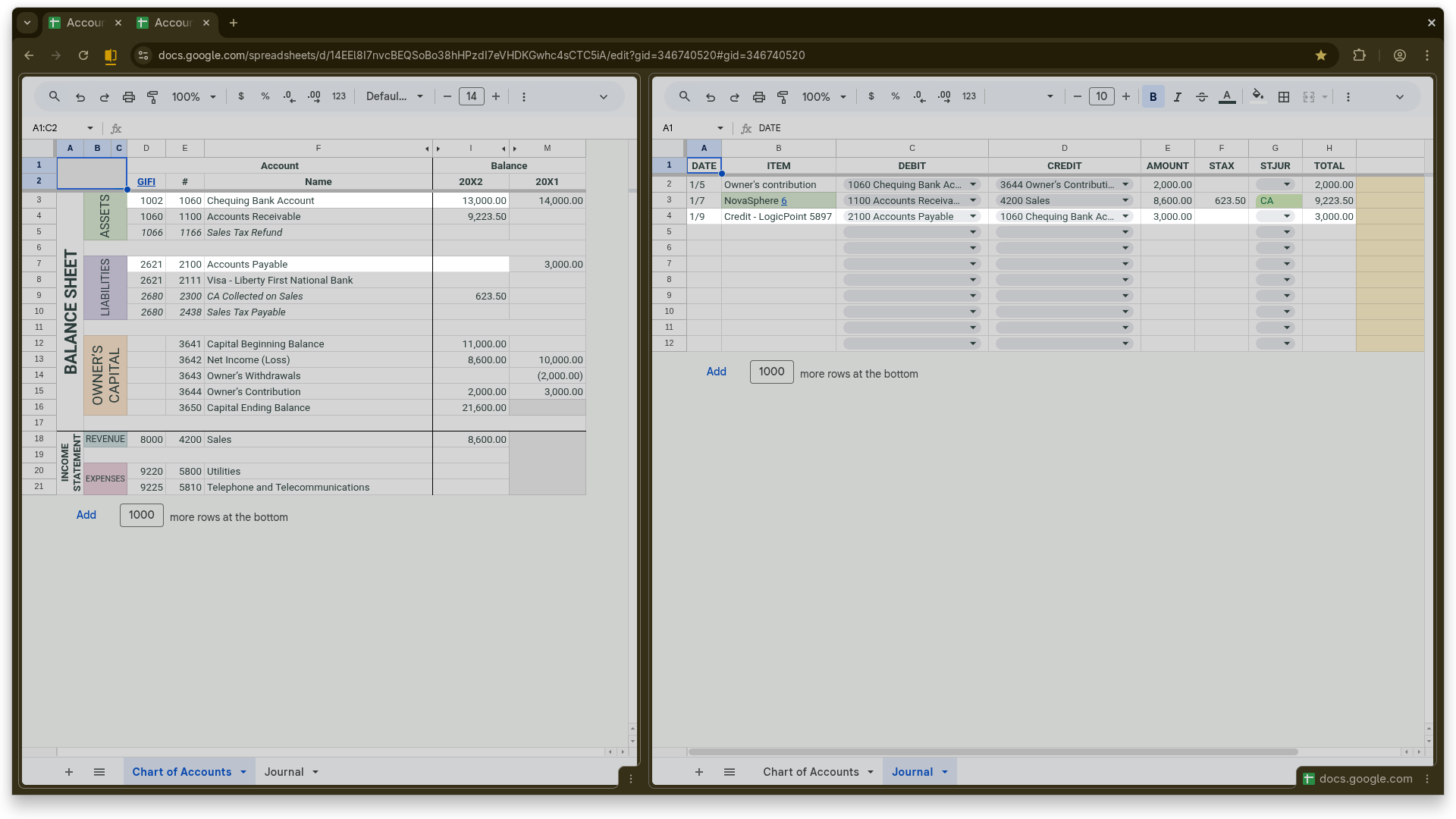
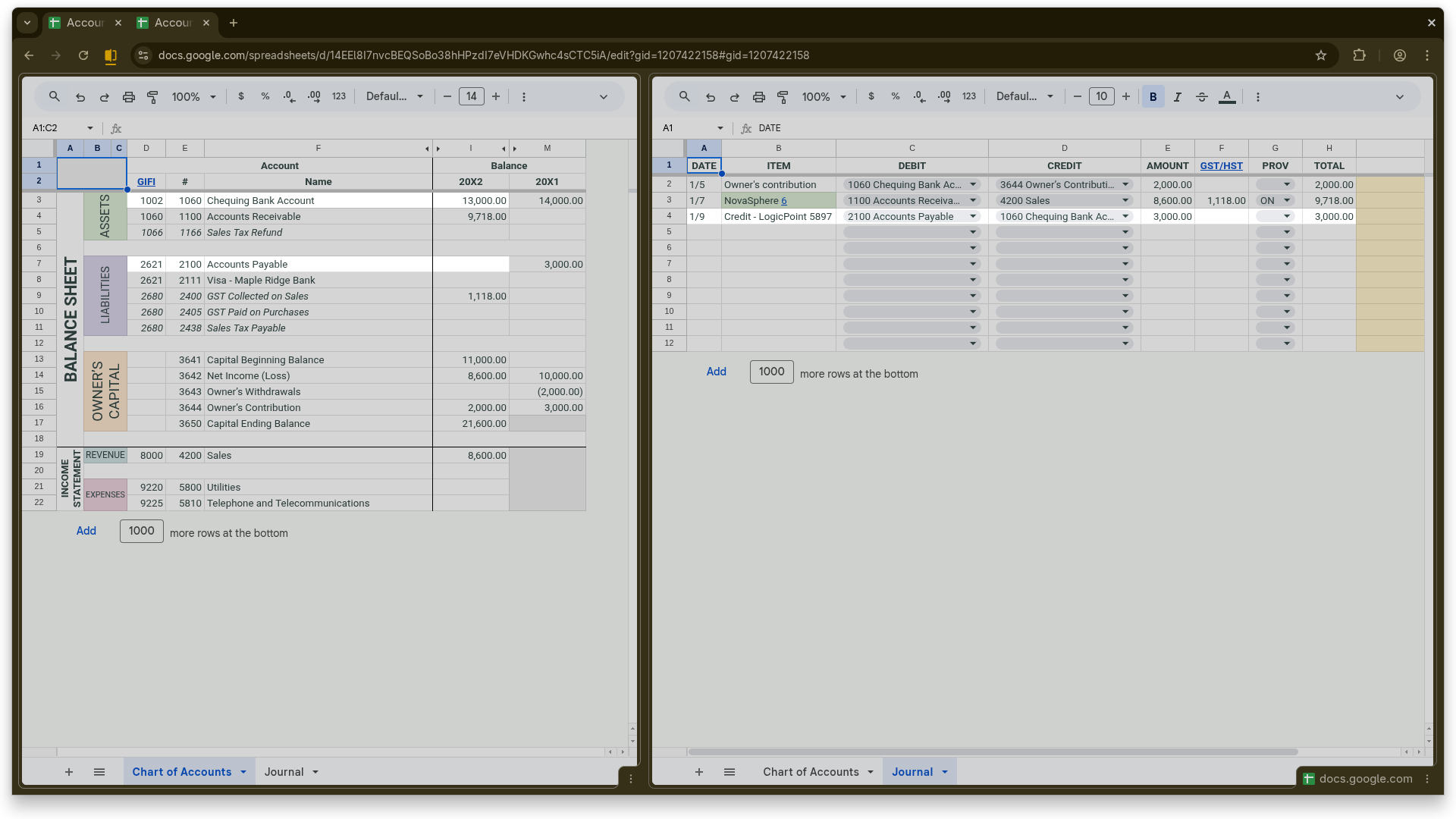
    Payment issued for a purchase recorded in the previous fiscal year—the outstanding balance in account 2100 (Accounts Payable) is cleared and the payment is made from account 1060 (Checking Bank Account). When clearing a payment, the ITEM column should follow the format “Credit – <item of the original purchase transaction>”. The purchase item “LogicPoint 5897” is cleared with the payment labeled “Credit – LogicPoint 5897”.

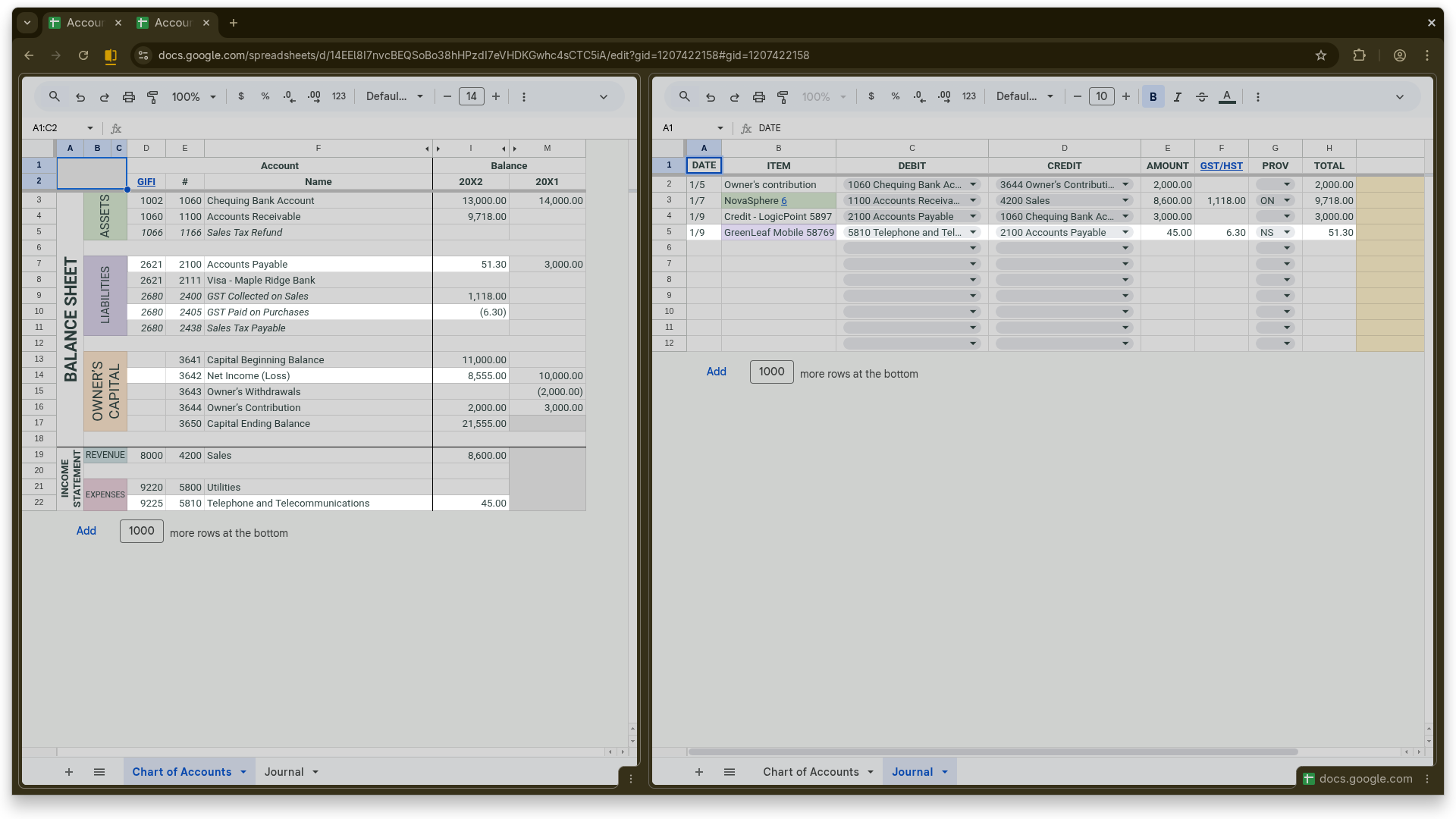
  • Cellular Plan Expense

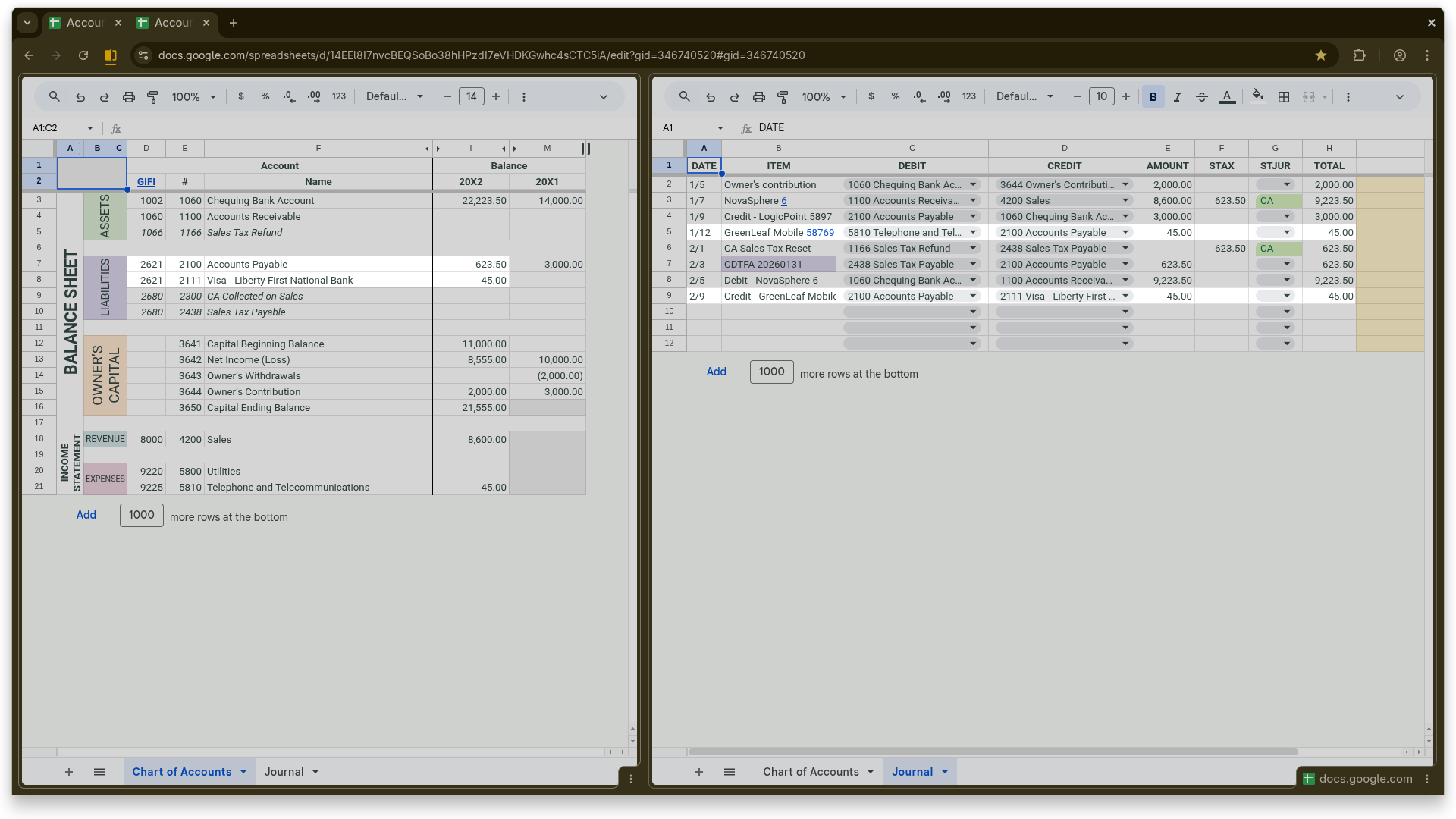
    Cellular Plan Expense

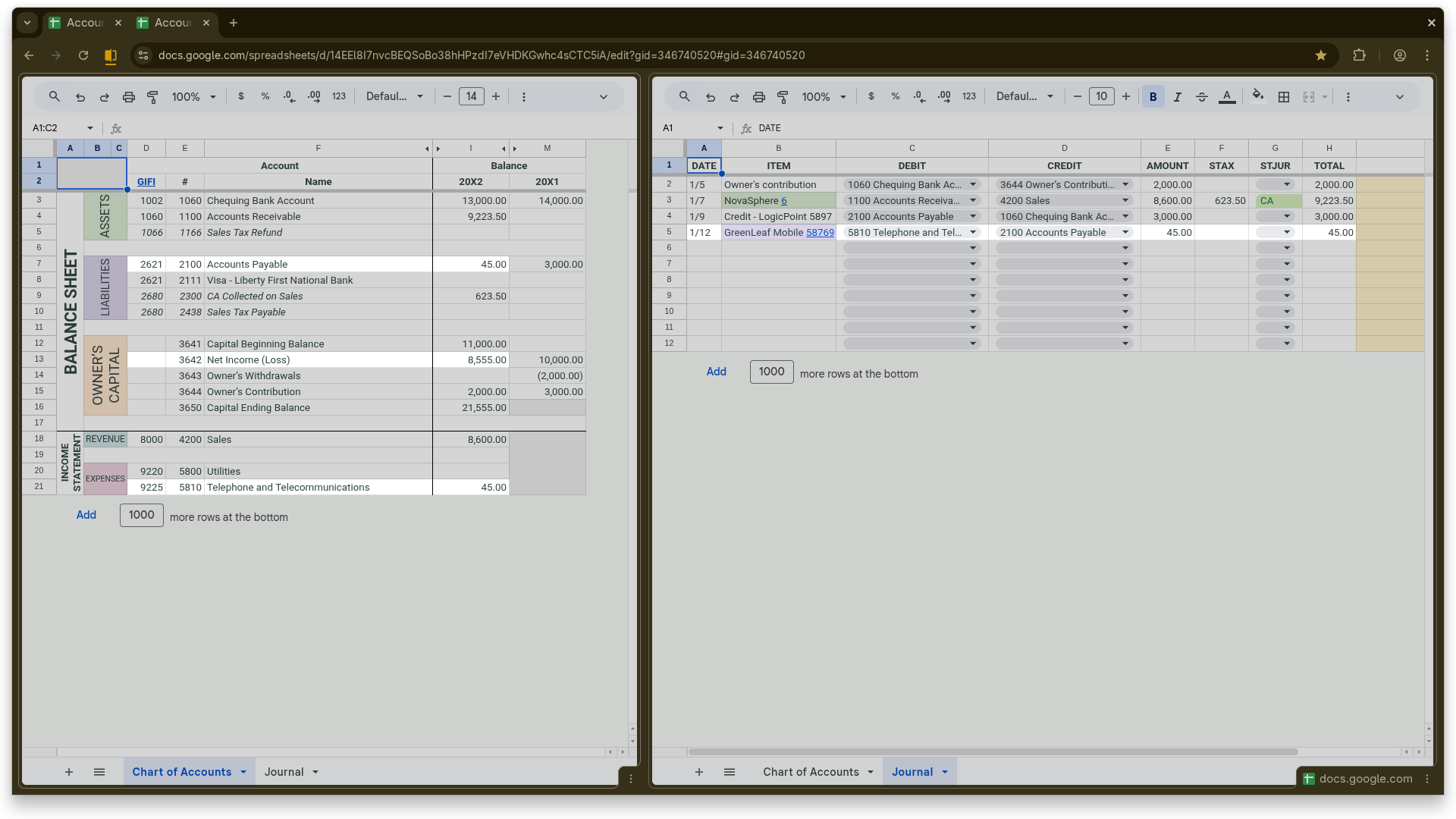
    The debit is posted to account 5810 (Telephone and Telecommunications) and the credit for the total amount is posted to 2100 (Accounts Payable). The ITEM column is labeled “GreenLeaf Mobile 58769”, following the recommended format <supplier> <invoice #>.

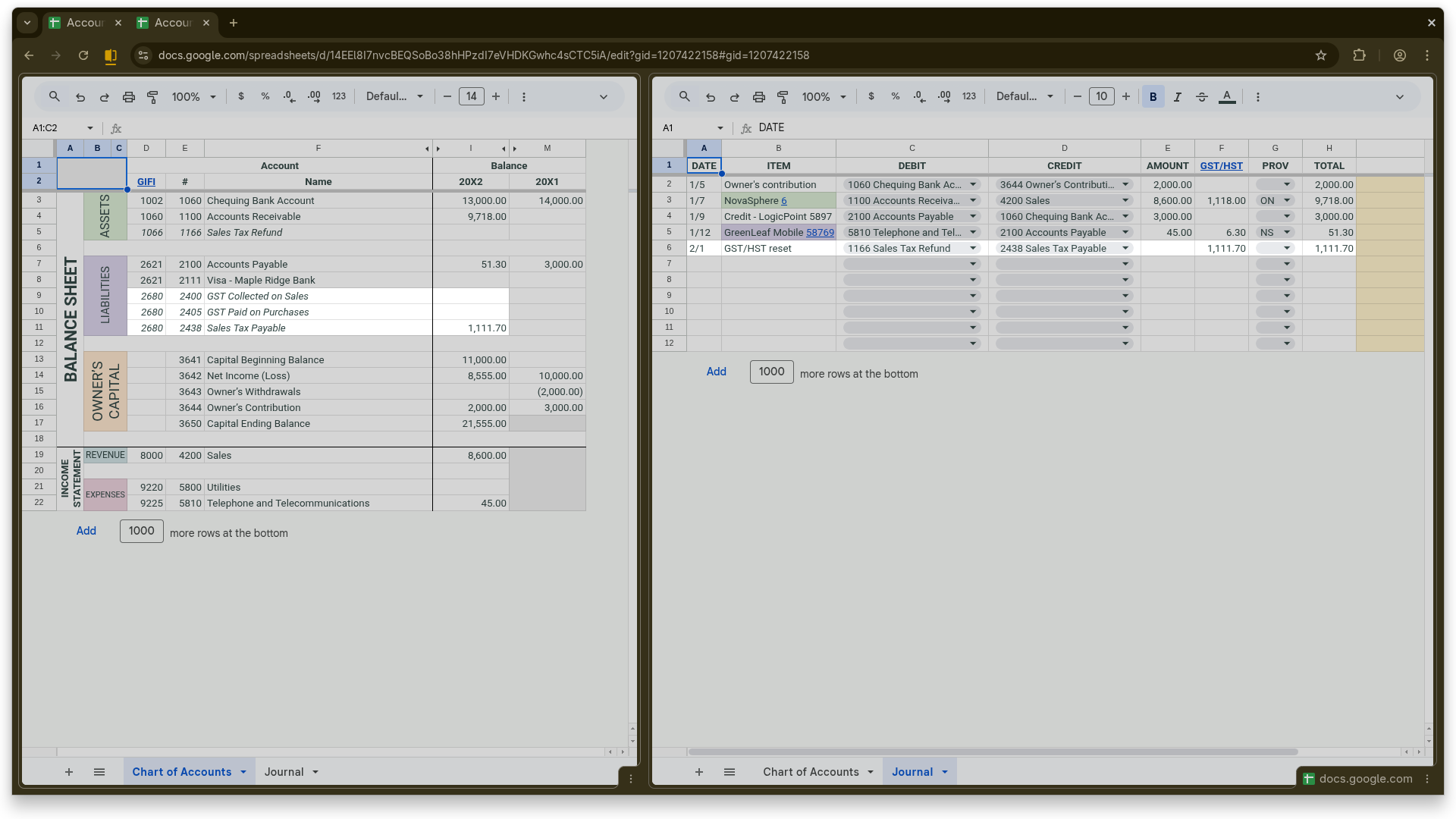
  • Resetting the Sales Tax Accounts

    Resetting the Sales Tax Accounts

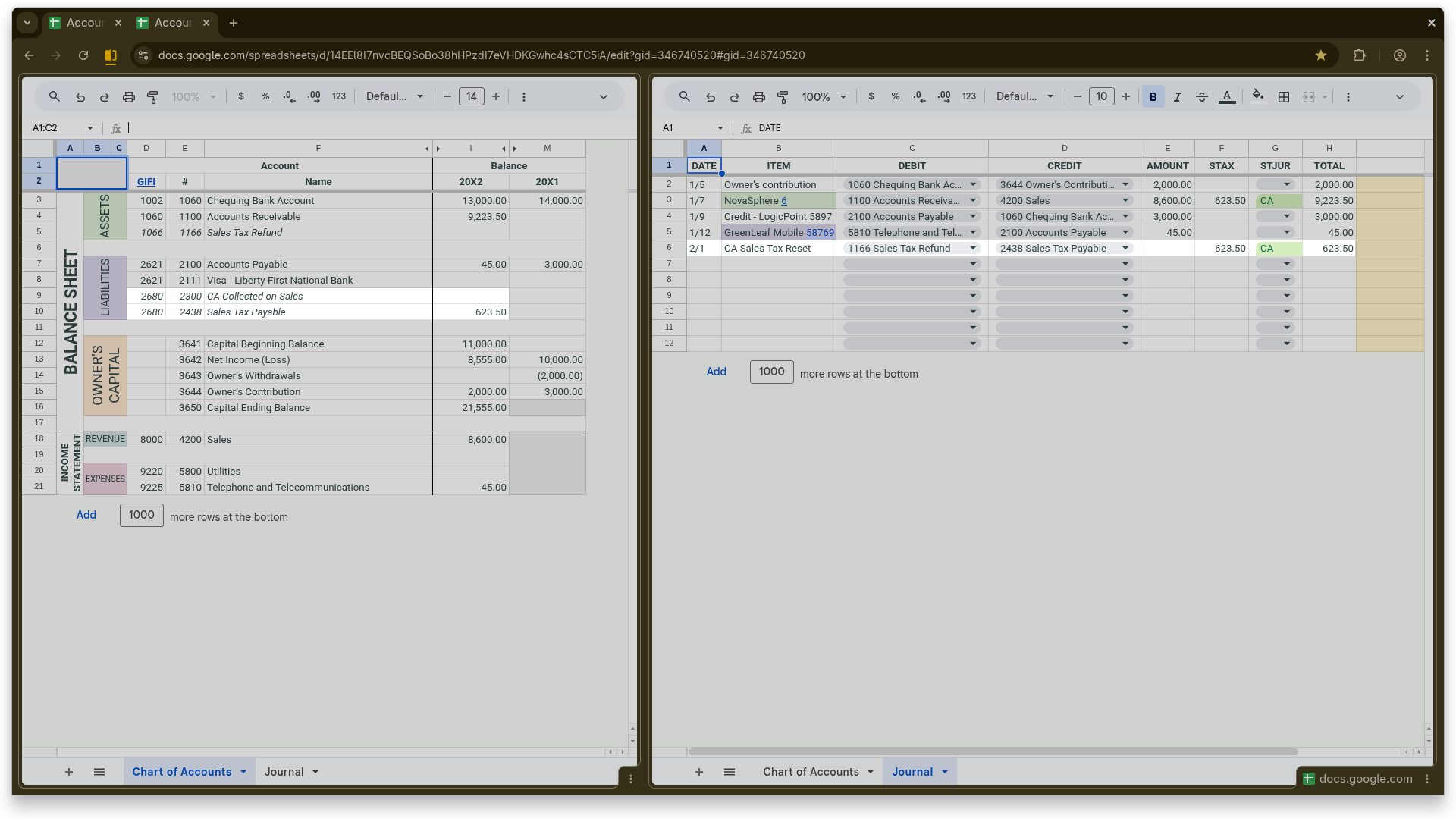
    A reserved journal transaction is used to reset the sales tax accounts. When account 1166 (Sales Tax Refund) is entered in the DEBIT column and 2438 (Sales Tax Payable) in the CREDIT column, Abaque automatically recognises the entry as a sales tax reset. The AMOUNT column is left blank, and the STAX column contains the net balance of the relevant sales tax account. In this example, because California sales tax is a non‑VAT sales tax, the balance in account 2003, which holds the CA collected sales tax, is directly transferred to 2438 (Sales Tax Payable) pending the company’s sales tax return filing.

  • Transferring the Payable After Filing

    Transferring the Payable After Filing

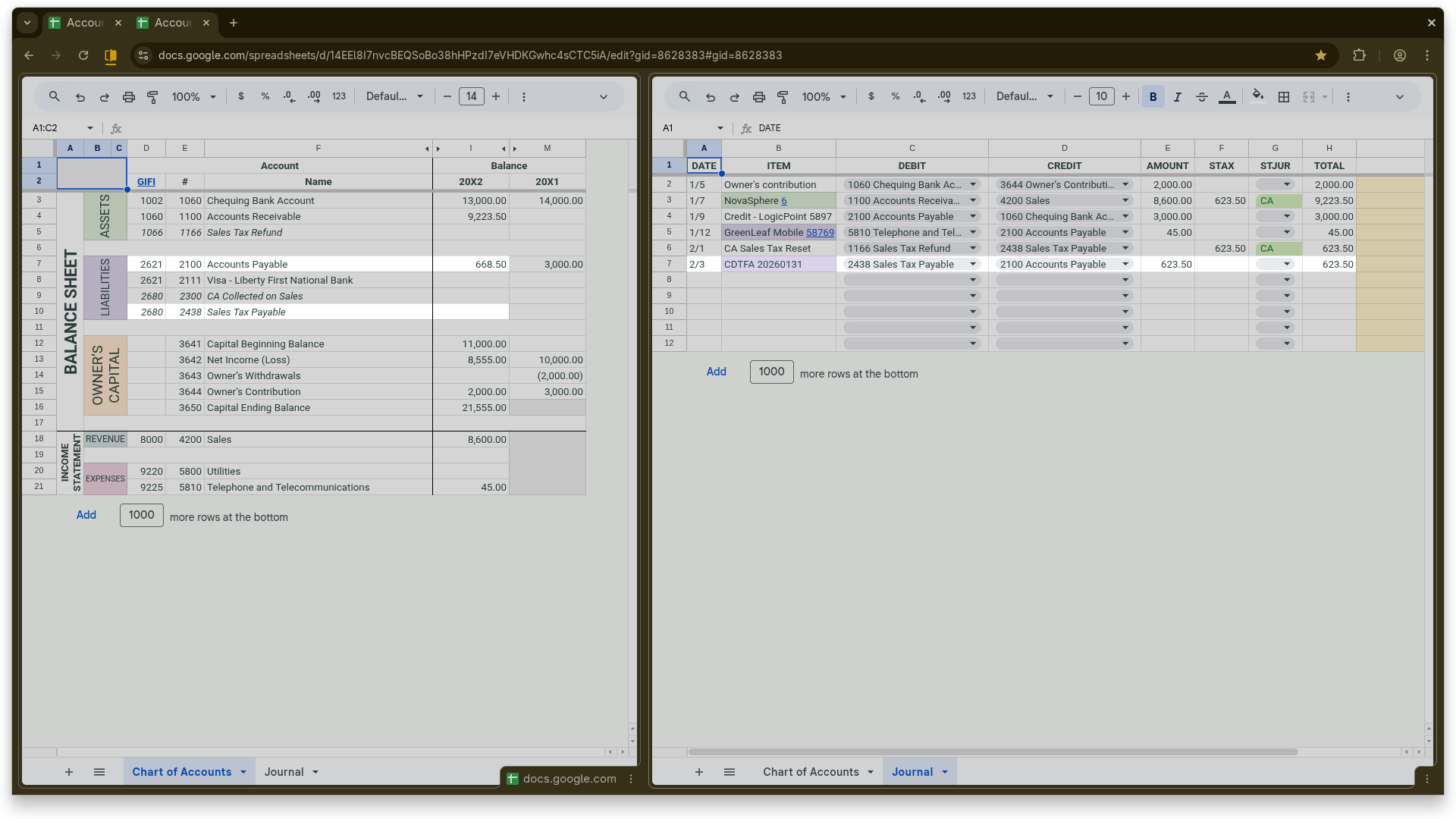
    After completing the CDTFA declaration, the net sales tax balance of 623.50 in account 2438 (Sales Tax Payable) is transferred to account 2100 (Accounts Payable), representing the amount now owed to the State of California.

  • Customer Payment Received

    Customer Payment Received

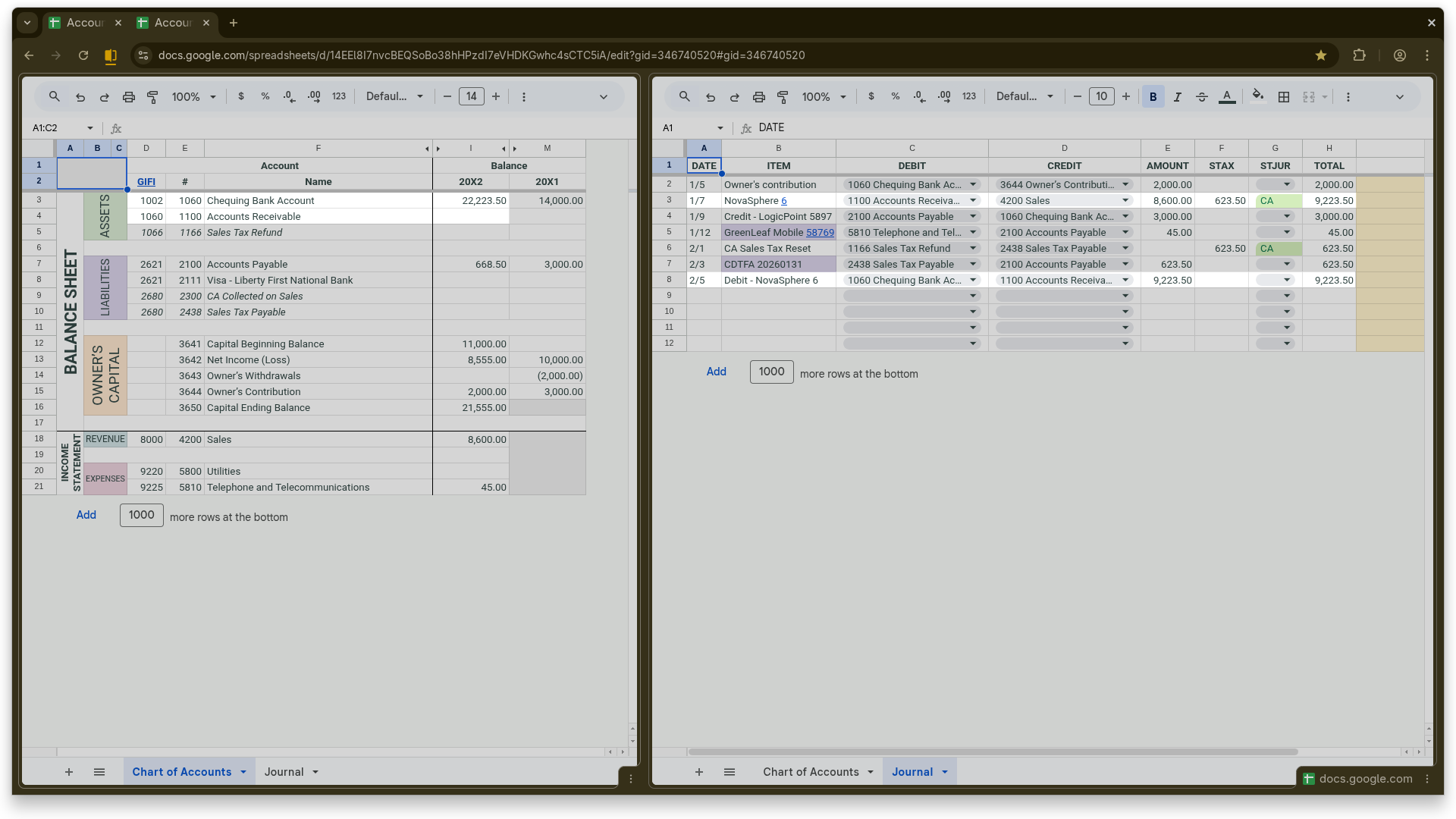
    Payment of Invoice #6 by NovaSphere — the debit is posted to account 1060 (Checking Bank Account) and the credit is applied to account 1100 (Accounts Receivable), clearing the outstanding balance. The ITEM column is labeled “Debit – NovaSphere 6” following the recommended format for clearing sales transactions. Using this labeling convention automatically removes the green highlight from the original sales transaction, indicating that it has been paid in full.

  • Payment of Purchase on Credit Card

    Payment of Purchase on Credit Card

    Payment of the purchase “GreenLeaf Mobile 58769”—the debit is posted to account 2100 (Accounts Payable) and the credit is posted to account 2111 (Visa – Liberty First National Bank), clearing the outstanding balance. The ITEM column is labeled “Credit – GreenLeaf Mobile 58769” following the recommended format for clearing purchase transactions.

  • Payment of Sales Tax to CDTFA

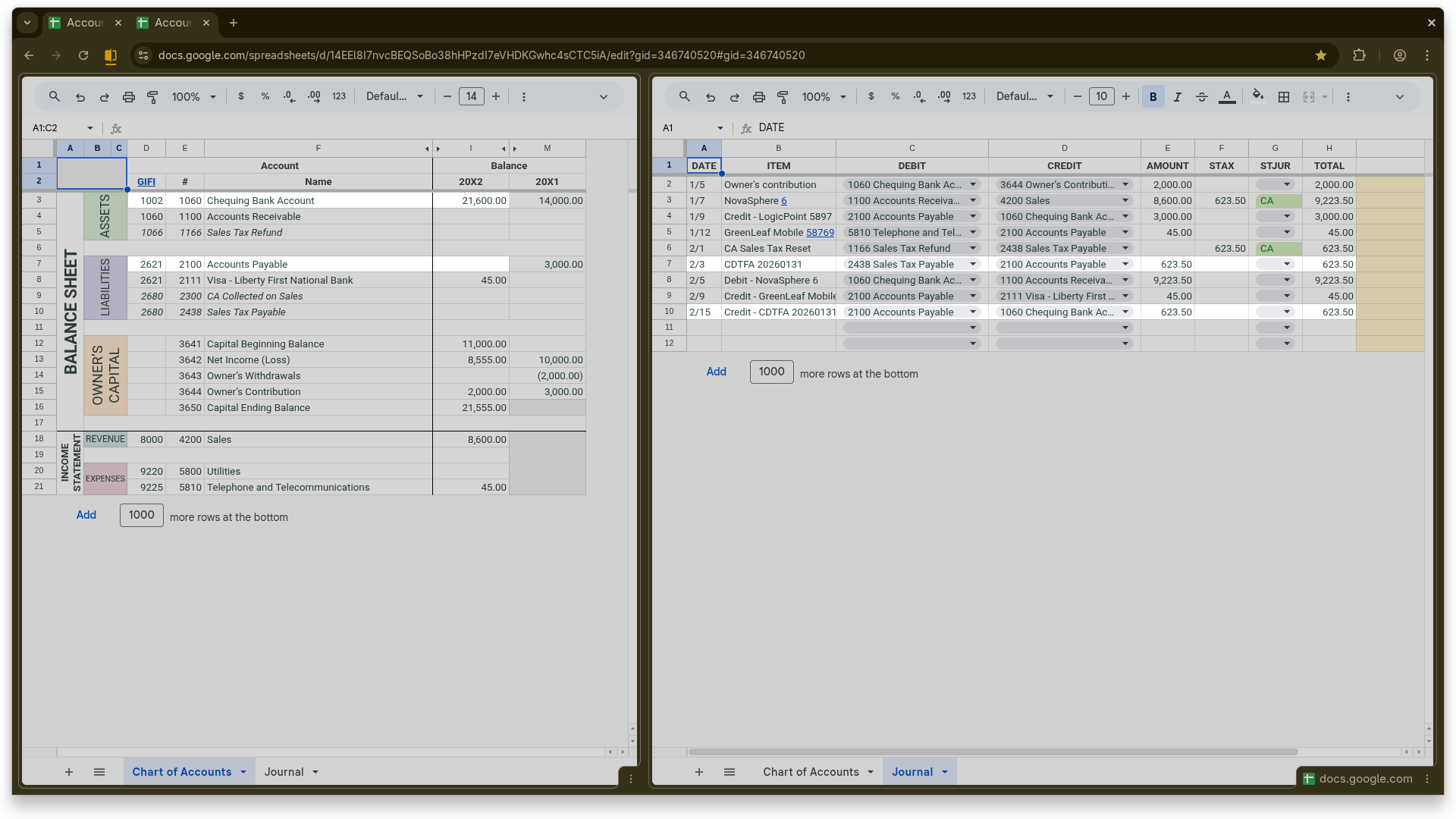
    Payment of Sales Tax to CDTFA

    The company remits the net sales tax of 623.50 to the CDTFA. The debit is posted to account 2100 (Accounts Payable) and the credit is posted to account 1060 (Checking Bank Account), clearing the liability. The ITEM column is labeled “Credit – CDTFA 20260131” following the recommended format for clearing sales tax transactions.


  • Credit Card Payment

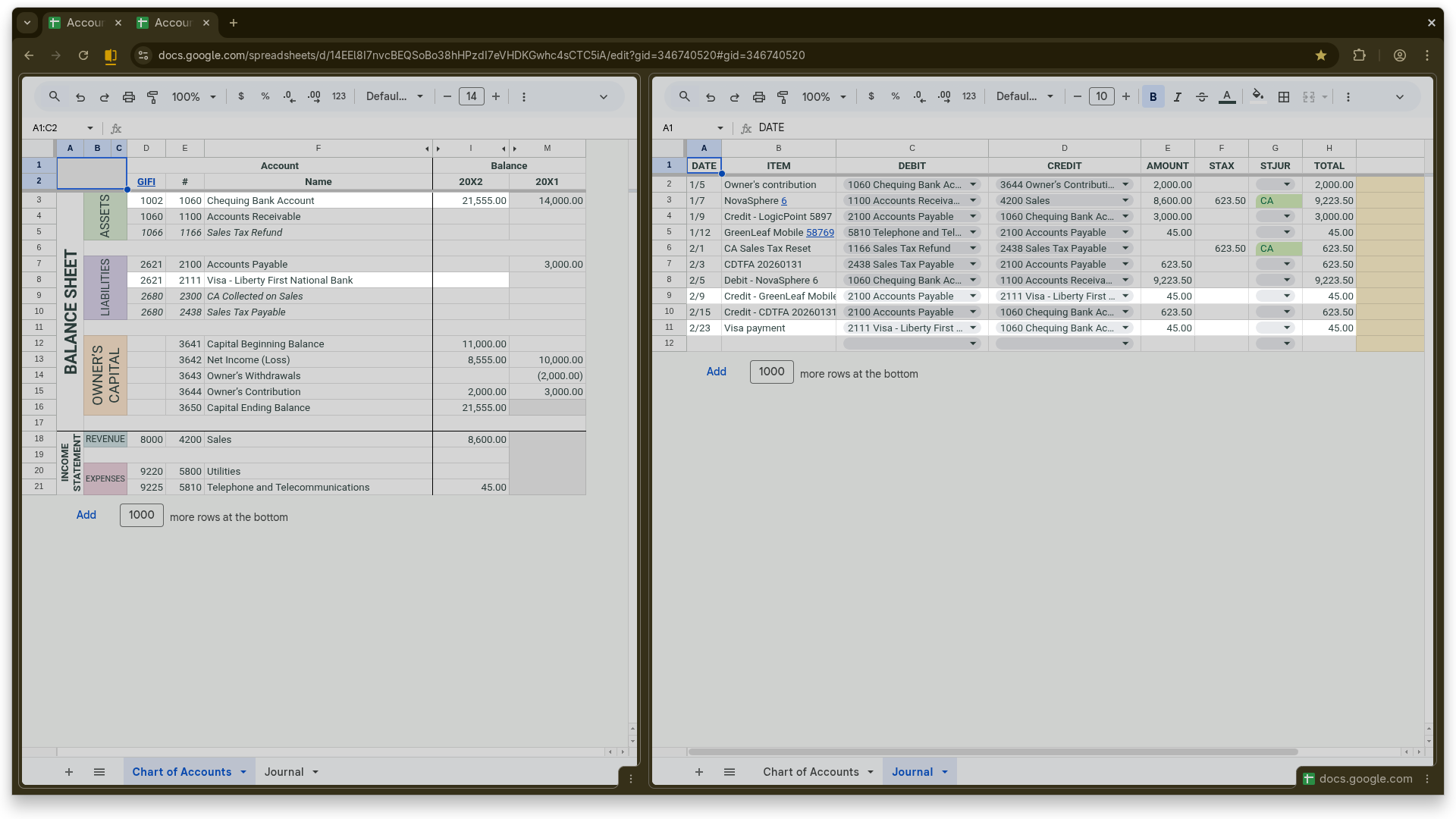
    Credit Card Payment

    Payment to the credit card account—the debit is posted to account 2111 (Visa – Liberty First National Bank) and the credit is posted to account 1060 (Checking Bank Account), clearing the outstanding balance.


  • Initial state

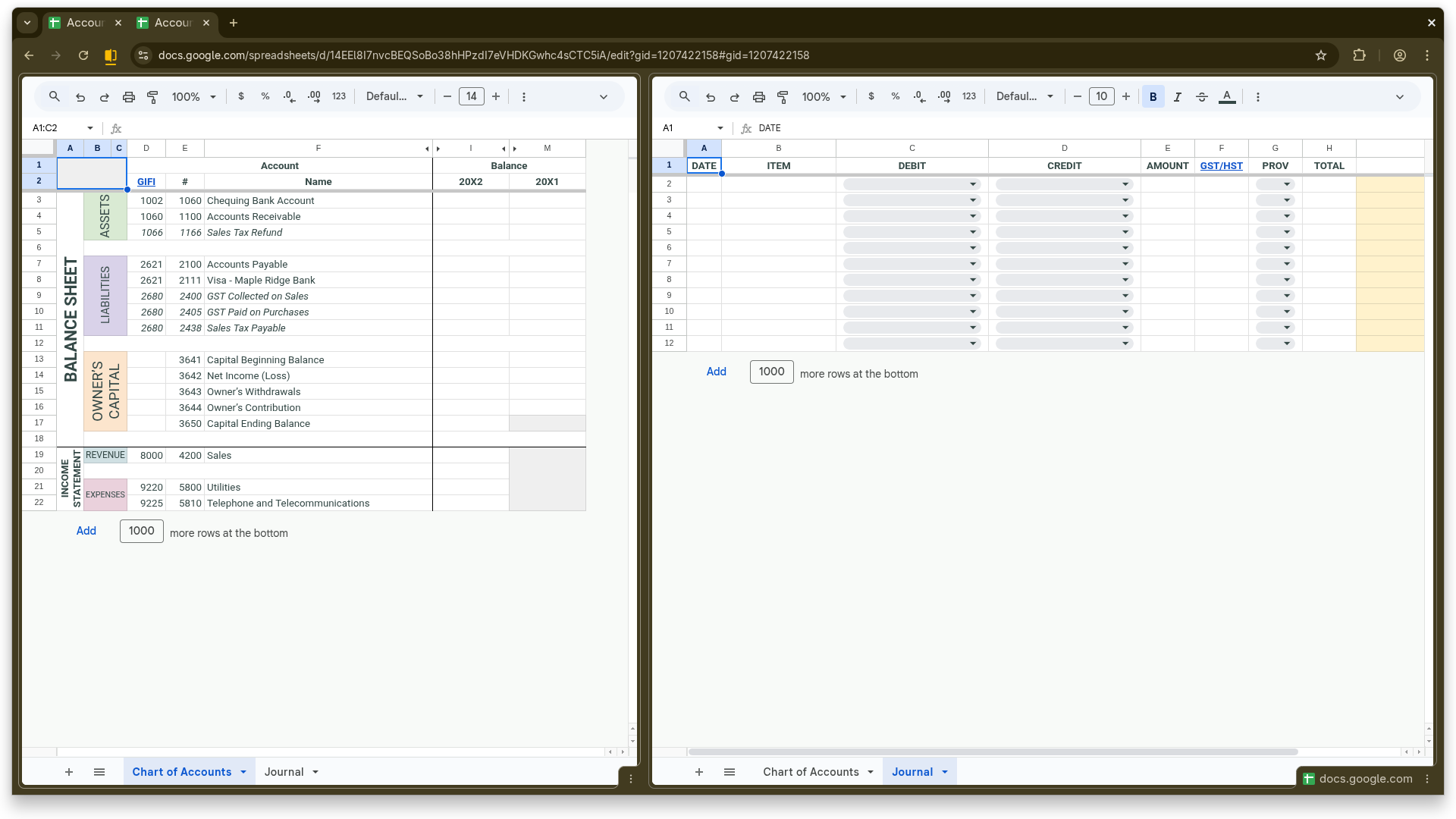
    Initial state

    Opening balances—all COA accounts start at zero.

  • Transferring Opening Balances

    Transferring Opening Balances

    If you are transitioning to Abaque from an existing bookkeeping system, transfer your closing balances to column “M” of the Balance Sheet section of the CoA, ensuring that the accounting equation (Assets = Liabilities + Equity) is respected. Income Statement balances cannot be imported. If the transition occurs during the financial year, income statement figures from both systems must be combined to determine the actual results for the period.

  • Owner’s Additional Contribution

    Owner’s Additional Contribution

    The first journal transaction is an additional owner contribution of 2,000—the debit is posted to account 1060 (Checking Bank Account) and the credit to account 3644 (Owner’s Contribution). This amount is automatically added to the beginning-of-year capital balance in account 3641 (Capital Beginning Balance), bringing the ending balance in account 3650 (Capital Ending Balance) to 13,000.

    (NB: Typically, before entering your first transaction, you must configure the sales tax columns of the Journal sheet that your business supports. However, for this particular slideshow, the system has been preconfigured to support GST/HST or no sales tax. As a result, the following provinces are excluded from all upcoming transactions: MB, SK, BC, and QC.)

  • Sales on Account (Accrual Basis)

    Sales on Account (Accrual Basis)

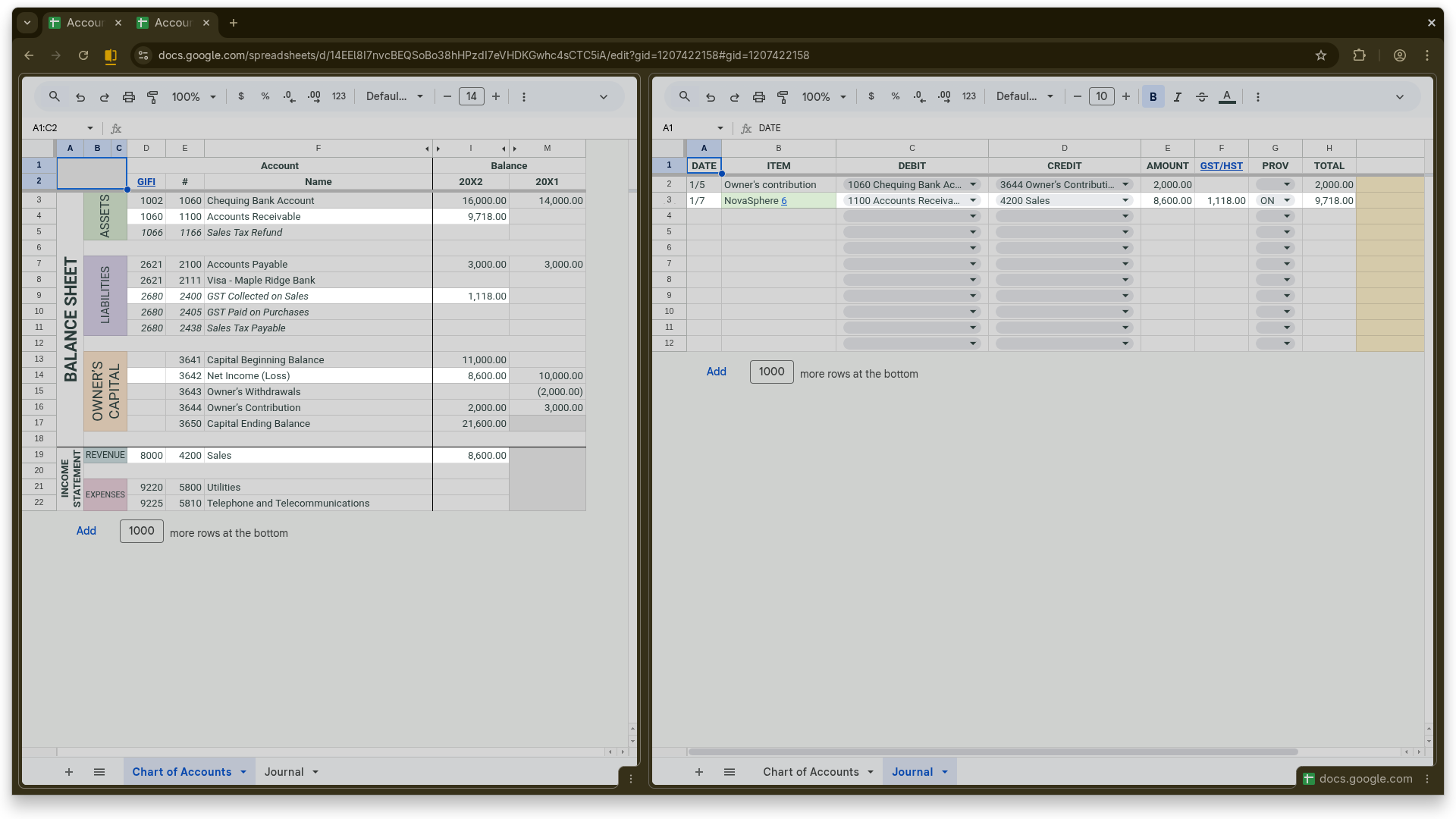
    Invoice #6 sent to NovaSphere—revenue is recorded in account 4200 (Sales), Ontario HST is credited to account 2400 (GST Collected on Sales), and the balance remains outstanding in account 1100 (Accounts Receivable). The ITEM column with the customer name and invoice number is automatically highlighted in green to indicate that the payment is still awaiting. In Abaque, the recommended labeling for sales and purchase transactions is <client/supplier> <invoice #>.

  • Settling a Prior-Year Payable

    Settling a Prior-Year Payable

    Payment issued for a purchase recorded in the previous fiscal year—the outstanding balance in account 2100 (Accounts Payable) is cleared and the payment is made from account 1060 (Checking Bank Account). When clearing a payment, the ITEM column should follow the format “Credit – <item of the original purchase transaction>”. The purchase item “LogicPoint 5897” is cleared with the payment labeled “Credit – LogicPoint 5897”.

  • Cellular Plan Expense

    Cellular Plan Expense

    The debit is posted to account 5810 (Telephone and Telecommunications); since this company is based in Nova Scotia, HST of 14% is credited to account 2405 (GST Paid on Purchases), and the credit for the total amount is posted to account 2100 (Accounts Payable). The ITEM column is labeled “GreenLeaf Mobile 58769” following the recommended format <supplier> <invoice #>.

  • Resetting Sales Tax Balances

    Resetting Sales Tax Balances

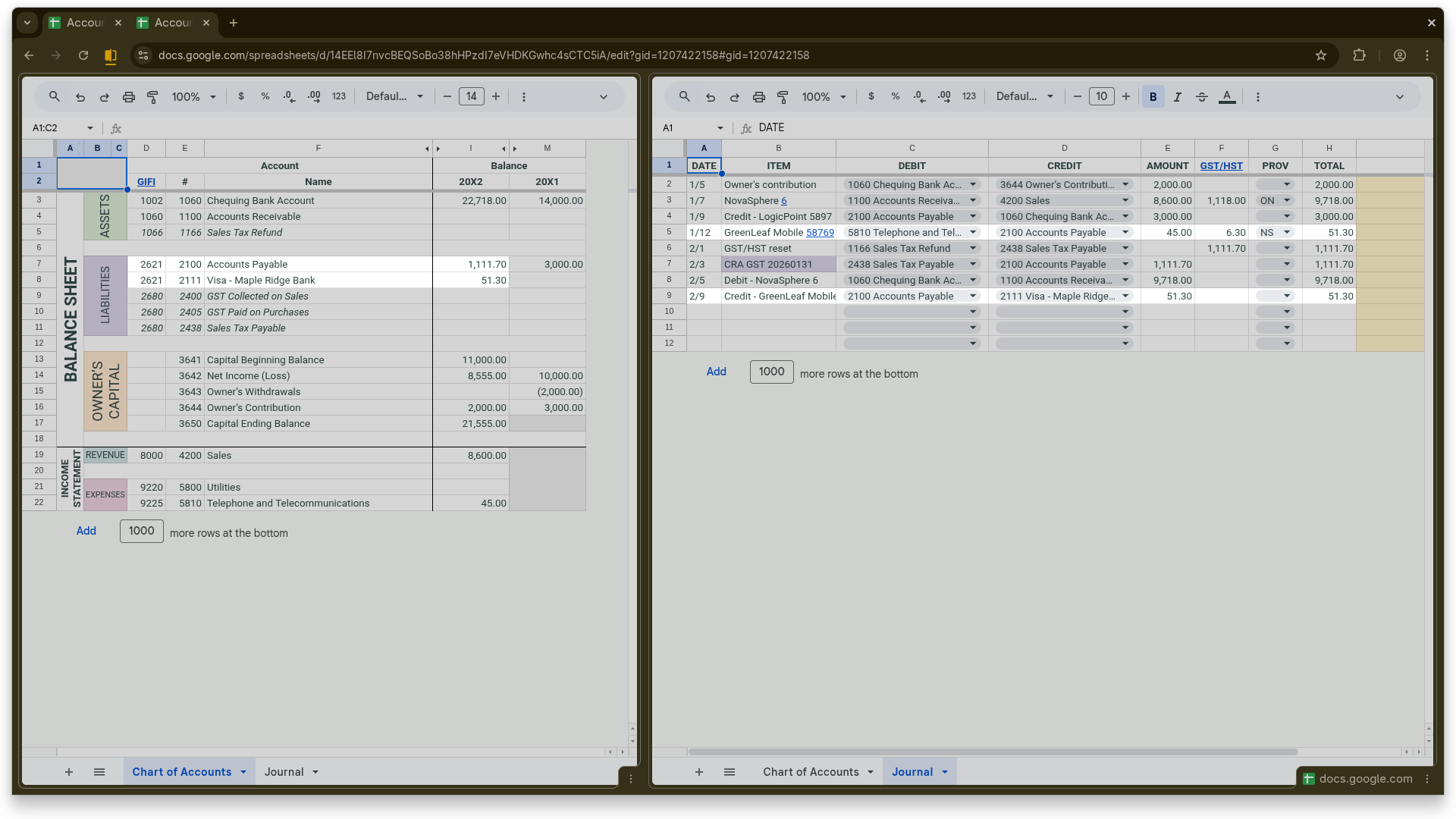
    A reserved journal transaction is used to reset the sales tax accounts. When account 1166 (Sales Tax Refund) is used in the DEBIT column and account 2438 (Sales Tax Payable) in the CREDIT column, Abaque automatically recognizes the entry as a sales tax reset. The AMOUNT column is left blank, and the GST/HST column contains the net balance of the sales tax accounts (2400 and 2405). Based on the resulting balance, the amount is recorded as either a payable or a refund. In this example, a net amount of 1,111.70 is due to the federal government.

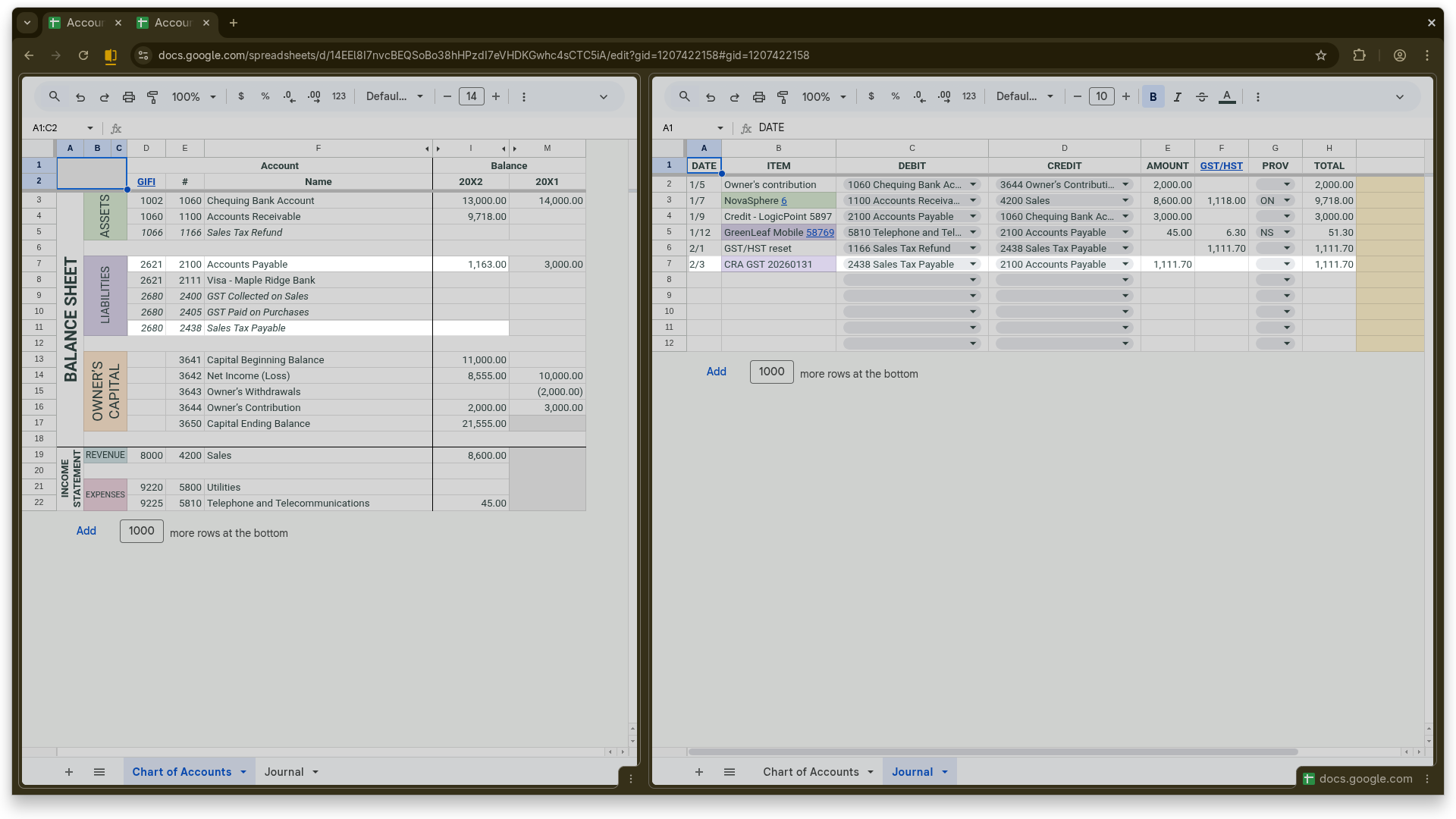
  • Transferring the Payable After Filing

    Transferring the Payable After Filing

    After completing the GST/HST declaration, the net sales tax balance of 1,111.70 in account 2438 (Sales Tax Payable) is transferred to account 2100 (Accounts Payable).

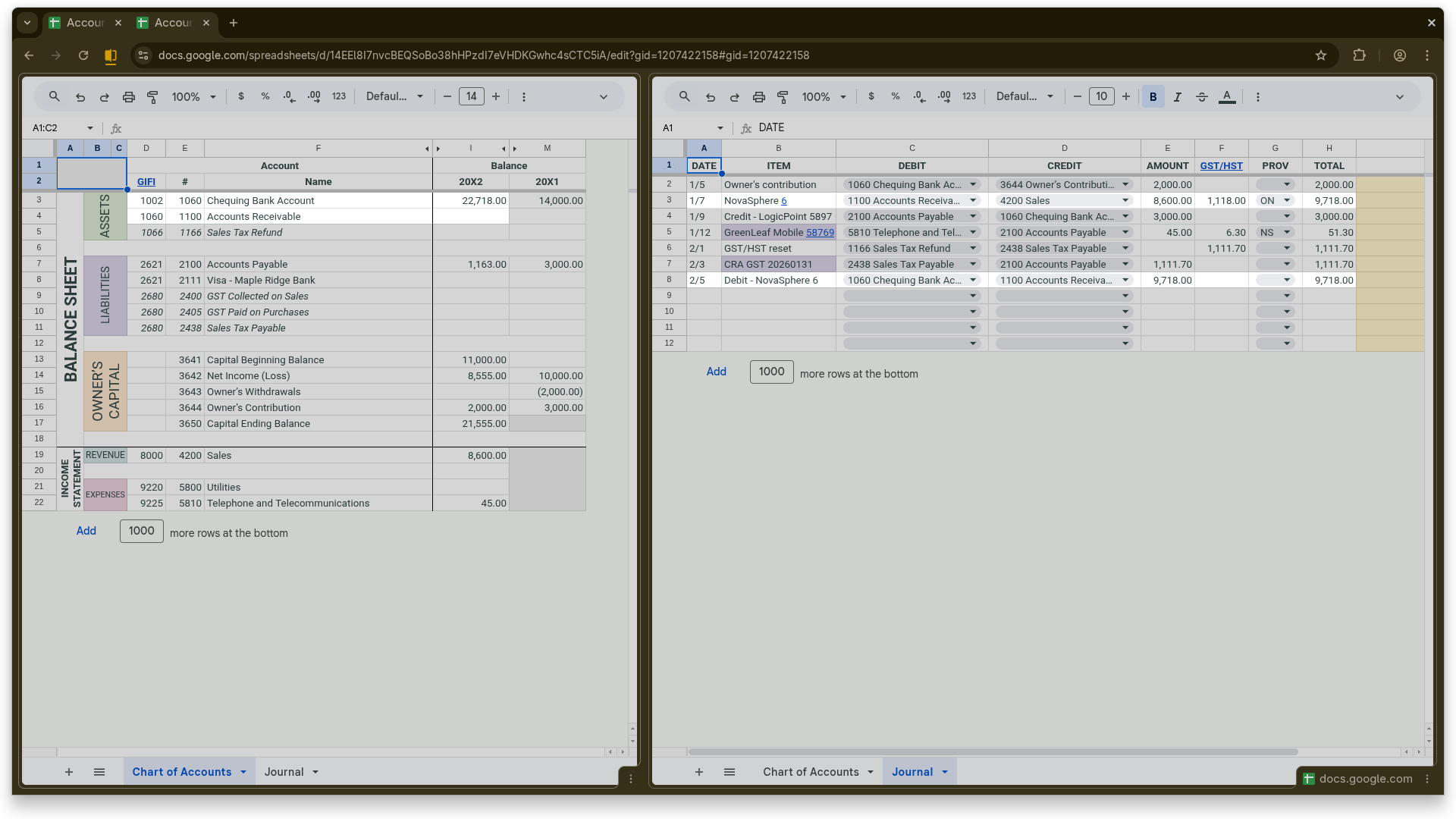
  • Customer Payment Received

    Customer Payment Received

    Payment of Invoice #6 by NovaSphere—the debit is posted to account 1060 (Checking Bank Account) and the credit is applied to account 1100 (Accounts Receivable), clearing the outstanding balance. The ITEM column is labeled “Debit – NovaSphere 6” following the recommended format for clearing sales transactions. Using this labeling convention automatically removes the green highlight from the original sales transaction, indicating that it has been paid in full.

  • Payment of Purchase on Credit Card

    Payment of Purchase on Credit Card

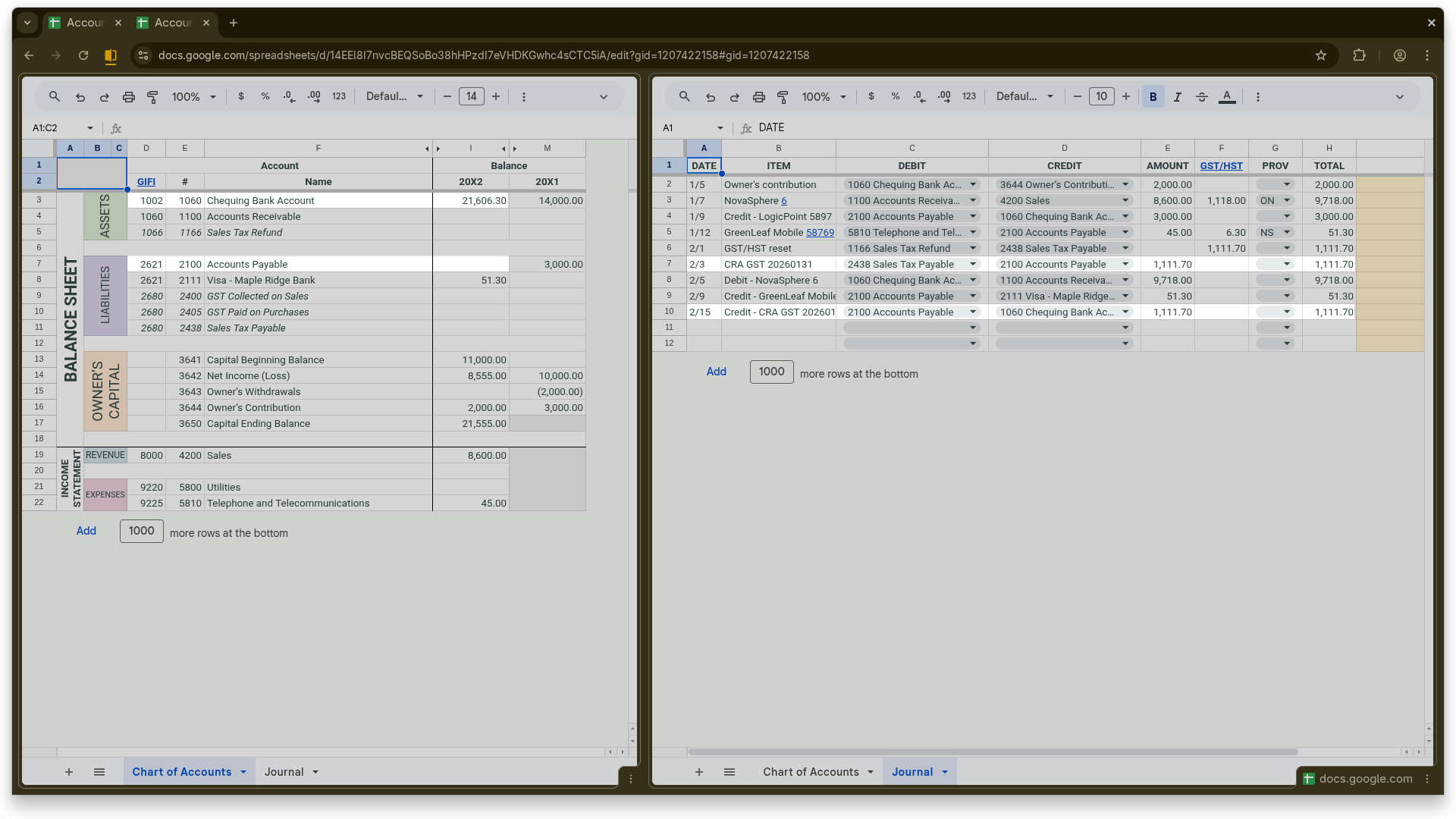
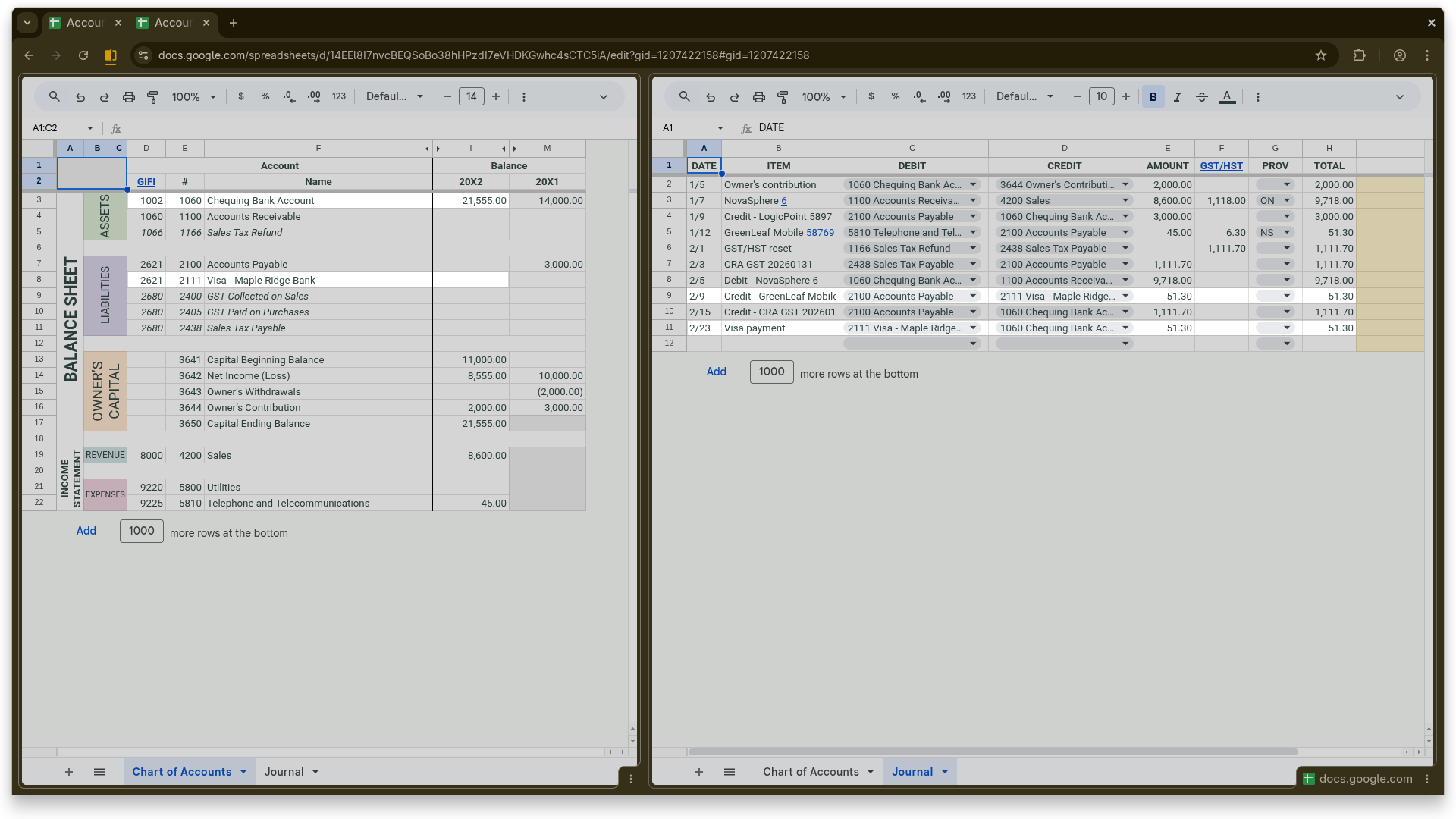
    Payment of the purchase “GreenLeaf Mobile 58769”—the debit is posted to account 2100 (Accounts Payable) and the credit is posted to account 2111 (Visa – Maple Ridge Bank), clearing the outstanding balance. The ITEM column is labeled “Credit – GreenLeaf Mobile 58769” following the recommended format for clearing purchase transactions.

  • Payment of Sales Tax to CRA

    Payment of Sales Tax to CRA

    The company remits the net sales tax of 1,111.70 to the federal government. The debit is posted to account 2100 (Accounts Payable) and the credit is posted to account 1060 (Checking Bank Account), clearing the liability. The ITEM column is labeled “Credit – CRA GST 20260131” following the recommended format for clearing purchase and sales tax transactions.

  • Credit Card Payment

    Credit Card Payment

    Payment to the credit card account—the debit is posted to account 2111 (Visa – Maple Ridge Bank) and the credit is posted to account 1060 (Checking Bank Account), clearing the outstanding balance.

Get Started With
Your Own Template
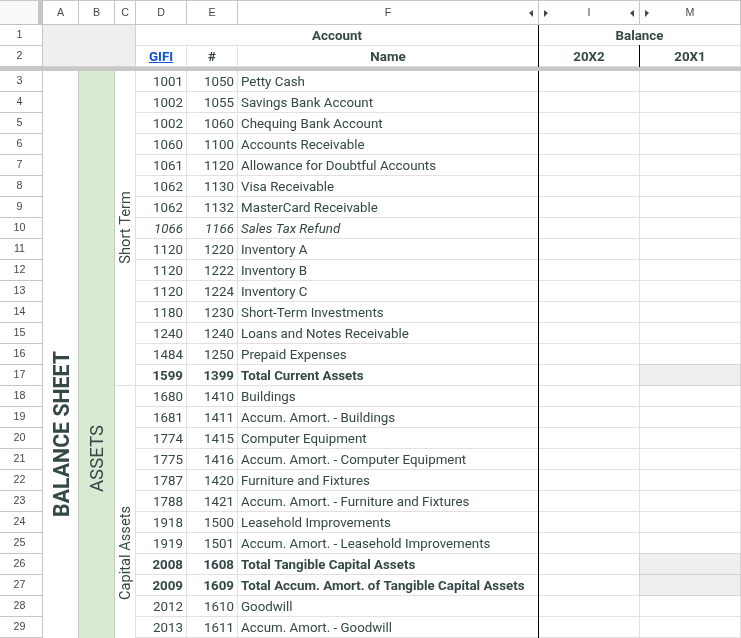
Abaque becomes even more intuitive once you begin working inside your own template. Each business structure—Sole Proprietorship, Partnership, or Corporation—includes a fully prepared CoA and Journal, so you can start recording transactions immediately. You can enter up to 10 transactions using the default, unedited CoA, giving you a hands-on way to explore how Abaque works before committing to a subscription. If you're not sure where to begin, simply replicate the example transactions shown in the demo slideshow to see how balances update in real time. The Installation & Setup page walks you through the entire process step by step.

Go to Installation & Setup

Already used your 10-transaction trial? Subscribe to Abaque to unlock unrestricted use for your entire fiscal year.

Subscribe