Chart of Accounts
Overview
The Chart of Accounts (CoA) is the architectural foundation of Abaque™. It is more than just a list of accounts; it is a structured database that dictates how every transaction in your Journal is classified, summarized, and ultimately transformed into professional financial statements.
A well-structured CoA allows you to:
- Automate Reporting: Ensure your Balance Sheet and Income Statement update in real-time.
- Maintain Integrity: Use built-in validation to prevent data-entry errors and out-of-sequence records.
- Ensure Global Compatibility: Leverage a standardized framework that works for both local tax compliance and international business management.
Anatomy of the CoA
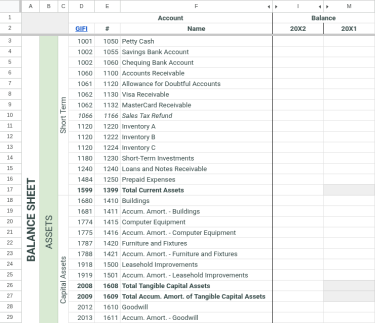
The CoA sheet is organized into 13 columns (A through M). Each column serves a specific functional purpose. Click “More...” to view the detailed logic for each level.
| Column | Structural Level | Visibility | Function & Description |
|---|---|---|---|
| A, B, C | Hierarchy | Visible |
Defines the structural levels for reporting. More...The Hierarchy represents the structural “Parent-Child” relationship of your accounts. These three columns dictate the visual layout of your financial reports, ensuring that data rolls up into the correct categories. 1. Financial Statement (Col A): Each account belongs to either the Balance Sheet or the Income Statement. This highest tier of classification determines whether the account represents a point-in-time balance or a period-based activity. 2. Section (Col B): Sections represent the primary accounting divisions of your reports. They group accounts into major functional blocks—such as Assets, Liabilities, Revenue, and Expenses—ensuring that data rolls up into the correct primary headers of your financial statements. 3. Category (Col C): Categories provide a finer level of classification within each Section (e.g., Short Term Assets or Operating Expenses). For sections that do not require this sub-level (e.g., Shareholders’ Equity), the Section and Category cells are often merged to maintain structural integrity. |
| D, E, F | Identity | Visible |
The unique identifiers for your account list. More...While the Hierarchy defines placement, the Identity defines the account’s unique fingerprint within the Abaque system.
Standard Notation: Throughout this documentation, specific accounts are referenced using the following shorthand:
Example: |
| G, H | Validation | Hidden |
Powers the searchable dropdown menus in the Journal. More...These columns serve as the mechanical link between your account list and the Journal entries. They provide the source data for the data validation settings in the Journal sheet, ensuring that only appropriate accounts are available for selection on each transaction side.
|
| I | Current Balance | Visible |
Live totals for the current fiscal year. More...This column represents the real-time state of your business, serving as the data source for all current-year financial reports.
|
| J | Subtotals | Hidden |
Calculates subtotals for adjacent account rows. More...This column is used exclusively to compute subtotals for vertically adjacent accounts within your CoA.
|
| K, L | Trial Balance | Hidden |
Internal verification array for system integrity. More...These columns serve as the internal “check and balance” system for the Abaque add-on, ensuring the mathematical integrity of the entire CoA.
|
| M | Prior Year Balance | Visible |
Comparative data retrieved from the previous fiscal period. More...This column stores the closing balances from your previous fiscal year to enable comparative financial reporting and year-over-year analysis.
|
Standardized Framework (GIFI)
Abaque utilizes the GIFI (General Index of Financial Information) framework from the Canadian Revenue Agency (CRA) as its structural backbone. While this aligns with Canadian tax standards, it serves international users as a robust, code-first methodology for organizing a professional ledger.
In addition to the internal hierarchy used for visual layout, each account in the Abaque add-on is associated with a standardized GIFI code. By mapping your unique Account Numbers to these codes, you ensure that even if you rename an account or move its position, the underlying reporting logic remains accurate, predictable, and audit-compliant.
This system groups accounts into ten logical components. The first four form the foundation of your Balance Sheet, while the remaining six correspond to your Income Statement activity:
Balance Sheet Components
- Assets: Cash, accounts receivable, inventory, and capital assets.
- Liabilities: Accounts payable, loans, and taxes owed.
- Equity: Owner’s capital, partner’s capital, or shareholders’ equity.
- Retained Earnings: The accumulated net income or deficit of the business over time (typically for Corporations).
Income Statement Components
- Non-farming Income: General business revenue and sales.
- Non-farming Expenses: Operating costs, wages, and administrative fees.
- Farming Income: Specialized revenue classifications for agricultural operations.
- Farming Expenses: Specialized expense classifications for agricultural operations.
- Other Comprehensive Income (OCI): Revenues, expenses, gains, and losses that are excluded from net income.
- Extraordinary Items: Significant, non-recurring events and income tax calculations.
These components correspond directly to the Sections (Column B) used within your CoA. For international users, this provides a consistent, audit-ready structural framework that functions independently of local jurisdiction requirements.
Modifying your CoA
While Abaque provides professionally designed templates, your initial configuration will likely involve a combination of manual account adjustments and high-level structural alignment to mirror your specific business model. In this section, we cover the essential mechanical operations for managing your ledger’s lifecycle, while data validation rules and specific configurations for agricultural and non-agricultural operations are detailed in subsequent subsections.
Account Lifecycle
To maintain the structural integrity of the Abaque engine, all modifications to the CoA must follow specific mechanical rules. Because balances and dropdown menus rely on contiguous ranges and ascending numeric logic, it is important to follow these rules during the editing process.
Before performing any adjustment or alignment, it is important to understand the concept of structural “Anchor Rows.” As detailed in the Anatomy of the CoA hierarchy, the very first row of any vertically merged block across Columns A, B, and C acts as the Category Anchor Row (for example, Row 3 serves as the anchor for the Balance Sheet, Assets, and Short Term headers). Because Google Sheets binds the vertically merged header data strictly to the top-left cell of the range, treating a Category Anchor Row like a regular row will break the sheet’s underlying structure. You must respect these category boundaries when adding or removing accounts.
Adding New Accounts
When expanding your ledger, never add rows above a Category Anchor Row or at the absolute bottom boundary of a Category block. Doing so will fail to expand the vertically merged headers, disrupt the reporting layout logic, and bypass the aggregation formulas. Instead, always insert a new row between two existing transactional accounts. This forces Google Sheets to beautifully expand the merged columns and include your new row in the proper reporting scope.
- Sequential Integrity: The Abaque engine requires all account numbers to be entered in strictly ascending numerical order. If a new account is added out of sequence, the
GIFI_21_BALANCEfunction will return a validation error. - Journal Eligibility (Dropdown Sync): After entering the GIFI Code, Account Number and Name, you must determine where the account should appear in the Journal. Refer to the Anatomy of the CoA table above for the specific “Account Eligibility Rules” regarding Debit (Col G) and Credit (Col H) availability.
- To make an account selectable, copy the concatenation formula from an adjacent row into the appropriate column. This formula dynamically references the data in that specific row (i.e.,
=$E<row> & " " & $F<row>) to create the entry string used by the Journal. - To restrict an account, leave the corresponding cell blank. For instance, to prevent an Expense from appearing in the Credit list, leave Col H blank.
- To make an account selectable, copy the concatenation formula from an adjacent row into the appropriate column. This formula dynamically references the data in that specific row (i.e.,
- Categorical Logic: Inserting the row in its correct numerical position ensures that the Journal dropdown menus remain intuitive, placing the new account exactly where it belongs within its functional Category (e.g., placing a new Bank account near existing Cash assets).
Special Handling for Adding Accounts at the Top of a Category
If you wish to add a new account at the absolute top of a Category (replacing the position of the current Category Anchor Row), do not insert a row above it. Instead, follow these steps:
- Insert Row Below: Right-click the row number immediately below the Category Anchor Row and select “Insert 1 row above”. This creates a clean, safely bounded row within the merged Category.
- Shift the Anchor Data Down: Select and cut (
Ctrl+X) the data from the Identity (Cols D-F) and Validation (Cols G-H) columns of the original anchor row. If you are modifying Row 3, leave Column M untouched if cell M3 contains the masterGIFI_BALANCE_CARRYFORWARDcustom function. For all other Category Anchor Rows, cut Column M content along with the other data. Paste this data (Ctrl+V) directly into the corresponding columns of the newly inserted row below it. - Fill the Anchor Row: Enter your new account’s GIFI Code, Account Number, and Account Name directly into the original Category Anchor Row position. Because the original account’s data was successfully pushed to the row below in Step 2, the hierarchical titles in Columns A, B, and C remain perfectly preserved.
- Re-sequence & Validate: Double-check that your account numbers across both rows are in strictly ascending numerical order and confirm that the formulas in columns G and H correctly maintain the selectable configuration for the Journal dropdown menus.
Structural Constraint: End-of-Category Bounds
Every standard category block within the Abaque template terminates with a dedicated summary row (e.g., 1599 | Total Current Assets at the bottom of the Short Term Assets category). Because these rows serve as the mathematical closing boundary for background data aggregation, adding a new account below them is structurally invalid.
To ensure your financial records calculate properly and remain within the reporting scope, never attempt to append rows to the absolute bottom of a category block. Instead, simply insert your new row between two existing transactional accounts anywhere higher up within the block to safely include it within the summary range.
Modifying Existing Accounts
You can safely rename, albeit with some caveat, an account (Col F) or change its classification at any time. However, Account Numbers (Col E) must never be changed once transactions involving them have been recorded in the Journal or if they carry a balance from the previous year.
- The Structural Link: Abaque uses the Account Number as the primary key to link Journal entries to the CoA. If you change a number that is already in use, the engine will trigger a validation error because the original account number used in a transaction can no longer be found.
- Renaming & Data Validation: If you change an account name in the CoA, the Abaque engine continues to calculate balances correctly. However, because the Journal uses Data Validation ranges, existing entries will show an “Invalid: Input must fall within specified range” error. To clear these flags, you must re-select the updated account name from the dropdown menu for those specific transactions.
- Carryforward Impact: The
GIFI_BALANCE_CARRYFORWARDfunction relies on matching account numbers between fiscal years. If you renumber an account that held a balance last year, the engine will be unable to “roll over” that amount to the new year, resulting in a “cannot carry over” error. - GIFI Reclassification Guardrails: While you can update an account’s GIFI Code (Col D), it must remain compatible with its Account Number block. The Abaque engine enforces strict mapping rules (e.g., Short Term Assets must stay within the 1000-1486 range). Refer to the Account Range & GIFI Mapping table below for permitted ranges.
Deleting or Removing Accounts
Deleting an account is a permanent action. Never simply clear the contents of a cell; you must manage the entire row to maintain the engine’s structural integrity.
- Historical & Carryforward Data: Before deleting a row, you must ensure the account has a 0.00 balance in the current year and no closing balance from the previous year. If you delete an account that carries a balance forward from a prior fiscal year, the engine will return an error stating that the balance cannot be moved to the new year as the destination account no longer exists.
- The “Delete Row” Command: To remove an account, you must delete the entire row (Right-click the row number > Delete Row). This allows Google Sheets to shift the remaining accounts up, preserving the contiguous range and sequential logic required by the
GIFI_21_BALANCEfunction across the CoA.
Special Handling for Category Anchor Rows
If the account you wish to remove is the Category Anchor Row (the top row) of a merged Category block (such as Row 3 for the Balance Sheet, Assets, and Short Term headers), simply deleting it will wipe out those structural titles.
To safely delete a Category Anchor Row:
- Multi-select columns D, E, and F of the row immediately below the Category Anchor Row.
- Cut them (
Ctrl+X) and paste them (Ctrl+V) directly onto Cell D of the anchor row. The row immediately below the Category Anchor Row will now be empty. - Verify the Validation Level: Look at columns G and H (Debit/Credit Validation) and confirm that the selectable configuration for the Journal dropdown menus is preserved.
- You can now safely delete the original row below the anchor. Because the account data was moved to the anchor row in Step 2, your structural titles in Columns A, B, and C are preserved.
Validation & Integrity
The Abaque engine maintains financial accuracy through a multi-tier validation system. These guardrails ensure that your Journal and CoA remain perfectly synchronized and mathematically sound.
1. Referential Integrity
Abaque protects the relationship between your historical transactions and your account list. The Journal utilizes strict Data Validation that only permits the selection of accounts currently existing in your CoA. If an account is modified or removed from the CoA after it has been used in a transaction, the reporting functions will detect the missing reference and alert you.
2. Net Income Reconciliation Rule
To ensure internal consistency, the system enforces a strict reconciliation between the Equity section and the Income Statement. The amount reported as 3680 — Net Income/Loss on the Balance Sheet must equal the 9999 — Net Income/Loss After Taxes on the Income Statement (adjusted for Other Comprehensive Income if applicable).
3. Dual-Path Verification & Rounding
Abaque calculates Net Income through two independent computation paths. To prevent "phantom" imbalances caused by floating-point math discrepancies, it is required that every arithmetic computation in the Journal (beyond simple addition or subtraction) utilizes the ROUND function.
If these paths diverge by even a fraction of a cent, the corresponding accounts in the CoA will be highlighted in pink as an immediate visual audit of your ledger's integrity.
4. Visual Indicators
- Profit/Loss Status: If
3680 — Net Income/Lossis negative, the value is displayed in red text for immediate visibility. - Noise Reduction: Any account with a balance between
-0.000001and+0.000001is treated as zero. The text is automatically hidden (white foreground) to ensure only active, meaningful balances draw your attention.
Industry Alignment (Farming vs. Non-Farming)
Default templates include specialized sections for agricultural reporting.
If your business is not tied to agriculture, you should delete the rows belonging to the “Farming Revenue” and “Farming Expenses” sections. While the Abaque engine remains functional if they are removed, it is recommended to preserve summary row 9970 | 7970 | Net Income/Loss Before [Tx & ]Extraordinary Items from the “Farming Expenses” section. This row provides a valuable calculation of your net position before extraordinary items and income tax (for corporations). This summary row should be positioned directly below 9369 | 5969 | Net Non-Farming Income once the other “Farming” section rows are deleted. Here is how the bottom of the CoA Expenses section should look once the deletion operation is complete:

For businesses that do have agricultural operations, the GIFI standard allows for two different ways to organize your ledger:
- Option A: Comprehensive Separation. Keep all four sections (two Non-Farming and two Farming). This is ideal if you want to strictly segregate your agricultural activities or if you prefer the thorough, classification codes provided within the Non-Farming sections for your general business income and expenses.
- Option B: Simplified Integration. If your farming operations are straightforward, you can consolidate your reporting. The GIFI standard provides specific codes for this purpose, such as
9650 — Non-farming incomefor reporting general revenue within a farming section when GIFI codes 8000 to 8299 are not used, and9850 — Non-farming expensesif you are not using items 8300 to 9368 for any non-farming expenses. In this scenario, the two general non-farming sections can be removed, resulting in a leaner, more efficient CoA.
Account Range & GIFI Mapping
To maintain accounting integrity, Abaque enforces strict relationships between GIFI Codes and Account Numbers. Use this table as a reference when adding or reclassifying accounts within your CoA.
| Section | Category | GIFI Code | Account No | |||
|---|---|---|---|---|---|---|
| Min | Max | Min | Max | |||
|
Balance Sheet
|
Assets | Short Term | 1000 | 1486 | 1000 | 1375 |
| Capital AssetsAccount Mapping RuleA Capital Asset account (e.g., 1410) must be immediately followed by its Accumulated Amortization account (e.g., 1411). | 1600 | 1921 | 1400 | 1606 | ||
| Accumulated Amortization of Capital AssetsAccount Mapping RuleThis account must be exactly one (1) digit higher than its corresponding Capital Asset account. | 1602 | 1922 | 1401 | 1607 | ||
| Intangible AssetsAccount Mapping RuleAn Intangible Asset account (e.g., 1620) must be immediately followed by its Accumulated Amortization account (e.g., 1621). | 2010 | 2076 | 1610 | 1776 | ||
| Accumulated Amortization of Intangible AssetsAccount Mapping RuleThis account must be exactly one (1) digit higher than its corresponding Intangible Asset account. | 2011 | 2077 | 1611 | 1777 | ||
| Long Term | 2180 | 2427 | 1780 | 1888 | ||
| Held in Trust | 2590 | — | 1890 | 1998 | ||
| Liabilities | Short Term | 2600 | 2966 | 2000 | 2399 | |
| Foreign sales taxes | 2680 | — | 2300 | 2399 | ||
| Long Term | 3140 | 3328 | 2440 | 2649 | ||
| Subordinated Debt | 3460 | 3460 | 2651 | 2749 | ||
| Held in Trust | 3470 | — | 2750 | 2849 | ||
| Capital/Equity | ||||||
| Sole ProprietorshipConfiguration RequirementThe "Chart of Accounts" spreadsheet of the "Sole Proprietorship" template file defines all available accounts for the "Owner's Capital" component. | (pre-established accounts only) | |||||
| PartnershipGIFI Overlap WarningAlthough GIFI codes for "Partnership" and "Corporation" overlap, the Abaque engine only allows the use of codes related to a single business structure per CoA sheet. | 3540 | 3571 | 3000 | 3499 | ||
| CorporationGIFI Overlap WarningAlthough GIFI codes for "Partnership" and "Corporation" overlap, the Abaque engine only allows the use of codes related to a single business structure per CoA sheet. | 3500 | 3570 | 3000 | 3499 | ||
| Retained Earnings/Deficit | 3700 | 3745 | 3700 | 3848 | ||
|
Income Statement
|
Revenue | Sales of Goods and Services | 8000 | 8053 | 4000 | 4488 |
| Others | 8090 | 8250 | 4490 | 4998 | ||
| Expenses | Cost of Sales | |||||
| Opening Inventory | 8300 | 8303 | 5000 | 5099 | ||
| Costs | 8320 | 8461 | 5100 | 5499 | ||
| Closing Inventory | 8500 | 8503 | 5500 | 5599 | ||
| Operating Expenses | 8520 | 9286 | 5620 | 5948 | ||
| Farming Revenue | 9370 | 9617 | 6000 | 6939 | ||
| Non-Farming Revenues | 9650 | — | 6940 | 6958 | ||
| Farming Expenses | 9660 | 9836 | 7000 | 7849 | ||
| Non-Farming Expenses | 9850 | — | 7850 | 7869 | ||
| Net Inventory Adjustment | 9870 | — | 7870 | 7897 | ||
| Other Comprehensive Income | 7000 | 7020 | 8000 | 8199 | ||
| Extraordinary Items [and Income Taxes] | 9975 | 9995 | 9000 | 9199 | ||
Predefined Items
The following list enumerates the predefined items used by the Abaque engine. These items serve two primary functional roles:
- Summary Accounts (Totals & Subtotals): Used for establishing system-calculated totals of sections and categories. Unless otherwise noted, these structural items are read-only and cannot be used as a DEBIT or CREDIT entry within the Journal.
- Tax Anchors: Used for calculating sales tax account balances and mapping regional tax liabilities.
| Section | GIFI Code | Account No | Account Name | |
|---|---|---|---|---|
|
Balance Sheet
|
Assets | 1599 | 1399 | Total Current Assets |
| 2008 | 1608 | Total Tangible Capital Assets | ||
| 2009 | 1609 | Total Accumulated Amortization of Tangible Capital Assets | ||
| 2178 | 1778 | Total Intangible Capital Assets | ||
| 2179 | 1779 | Total Accumulated Amortization of Intangible Capital Assets | ||
| 2589 | 1889 | Total Long-Term Assets | ||
| 2599 | 1999 | Total Assets | ||
| Liabilities | 3139 | 2439 | Total Current Liabilities | |
| 3450 | 2650 | Total Long-Term Liabilities | ||
| 3499 | 2999 | Total Liabilities | ||
| Capital/Equity | ||||
| Sole Proprietorship | 3641 | Capital Beginning Balance | ||
| 3642 | Net Income (Loss) | |||
| 3650 | Capital Ending Balance | |||
| 3659 | Total Liabilities and Owner’s Capital | |||
| Partnership | 3545 | 3545 | Undistributed Net Income (Loss)Net Profit DistributionThe system authorizes transactions between this item and partners with GIFI codes 3552 or 3562 to distribute profit. Entries should be at the end of the Journal. Advanced: Use HEX2DEC(200) in the indicator parameter of GIFI_21_BALANCE to authorize this year-round. |
|
| 3550 | 3550 | Distributed Net Income (Loss) | ||
| per General Partner | 3551 | 3xxxAccount AssignmentThe "xxx" represents a user-defined digit sequence. Note: These accounts must remain within the specific Partnership Equity range defined in the Account Range & Mapping table above. |
Capital Beginning Balance | |
| 3552 | 3xxx | Net Income (Loss)Net Profit DistributionThe system authorizes transactions between Undistributed Net Income (3545) and this partner item to distribute profit. Advanced: Use HEX2DEC(200) in the indicator parameter of GIFI_21_BALANCE to authorize this throughout the year. |
||
| 3560 | 3xxx | Capital Ending Balance | ||
| per Limited Partner | 3561 | 3xxx | Capital Beginning Balance | |
| 3562 | 3xxx | Net Income (Loss)Net Profit DistributionThe system authorizes transactions between Undistributed Net Income (3545) and this partner item to distribute profit. Advanced: Use HEX2DEC(200) in the indicator parameter of GIFI_21_BALANCE to authorize this throughout the year. |
||
| 3571 | 3xxx | Capital Ending Balance | ||
| 3580 | 3574 | Accumulated Other Comprehensive Income | ||
| 3575 | 3575 | Total Partners’ Capital | ||
| 3585 | 3585 | Total Liabilities And Partners’ Capital | ||
| Corporation | 3600 | 3600 | Retained Earnings/Deficit | |
| 3620 | 3620 | Total Shareholder Equity | ||
| 3640 | 3640 | Total Liabilities and Shareholder Equity | ||
| Retained Earnings/Deficit | 3660 | 3660 | Retained Earnings/Deficit – Start | |
| 3680 | 3680 | Net Income/Loss | ||
| 3849 | 3849 | Retained Earnings/Deficit – End | ||
|
Income Statement
|
Revenue | 8089 | 4489 | Total Sales of Goods and Services |
| 8299 | 4999 | Total Revenue | ||
| Expenses | ||||
| 8518 | 5618 | Cost of Sales | ||
| 8519 | 5619 | Gross Profit (Loss) | ||
| 9367 | 5967 | Total Operating Expenses | ||
| 9368 | 5968 | Total Expenses | ||
| 9369 | 5969 | Net Non-Farming Income | ||
| Farming Revenue | 9659 | 6959 | Total Farm Revenue | |
| Farming Expenses | 9898 | 7898 | Total Farm Expenses | |
| 9899 | 7899 | Net Farm Income | ||
| 9970 | 7970 | Net Income/Loss Before Taxes and Extraordinary Items | ||
| Other Comprehensive Income | 9998 | 9998 | Total-Other Comprehensive Income | |
| Extraordinary Items [and Income Taxes] | 9999 | 9999 | Net Income/Loss After [Taxes and ]Extraordinary Items | |
| GIFI Code | Account No | Account Name |
|---|---|---|
| 1066 | 1166 | VAT Refund |
| 2680 | 2438 | Sales Tax/VAT Owing |
| GIFI Code | Account No | Account Name |
|---|---|---|
| 1066 | 1166 | GST/HST/QST Refund |
| 2680 | 2400 | GST Charged on Sales |
| 2680 | 2405 | GST Paid on Purchases |
| 2680 | 2430 | QST Charged on Sales |
| 2680 | 2431 | PST_BC Charged on Sales |
| 2680 | 2432 | RST_MB Charged on Sales |
| 2680 | 2433 | PST_SK Charged on Sales |
| 2680 | 2435 | QST Paid on Purchases |
| 2680 | 2438 | GST/HST/QST/PST_BC/RST_MB/PST_SK Owing |